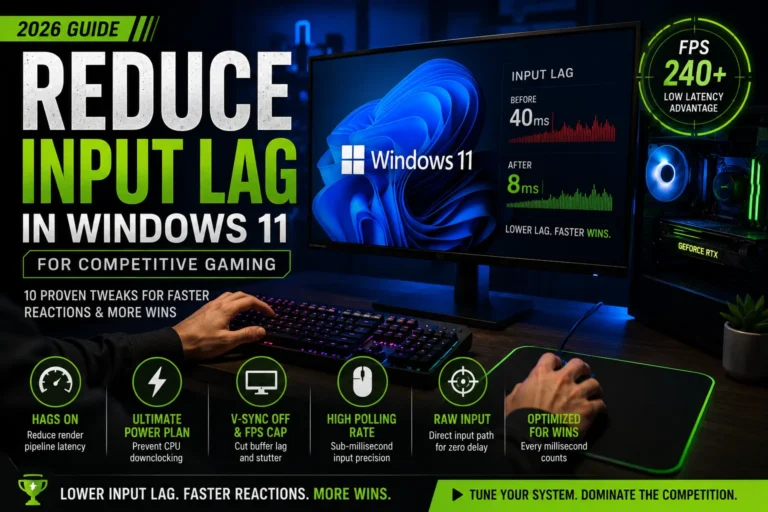

Gaming performance is heavily reliant on Frames Per Second (FPS), a critical factor that determines the smoothness of the gaming experience. A higher FPS means a more responsive and enjoyable gameplay. However, achieving high FPS can be challenging due to hardware limitations and software inefficiencies.

Fortunately, there are several free FPS tools available that can help gamers optimize their gaming performance. These include overlay and monitoring tools for real-time performance tracking, driver updaters to ensure graphics cards are running with the latest software, fan curve adjusters to optimize cooling, and game boosters that tweak system settings for better performance.
By utilizing these free tools, gamers can potentially see a significant improvement in their FPS, enhancing their overall gaming experience. In this article, we’ll explore some of the best free FPS boost tools available, helping you to optimize your gaming performance without incurring additional costs.
Key Takeaways
- Understanding the importance of FPS in gaming.
- Identifying categories of free tools that can enhance FPS.
- Exploring overlay and monitoring tools for real-time performance tracking.
- Utilizing driver updaters for optimal graphics card performance.
- Adjusting fan curves for better cooling and performance.
- Leveraging game boosters for system optimization.
Why FPS Matters in Gaming
In the world of gaming, FPS is more than just a statistic; it’s a determinant of how smoothly and responsively a game plays. A good FPS ensures that the gameplay is fluid and enjoyable, while a low FPS can lead to a frustrating experience.
The Impact of Low FPS on Gaming Experience
A low FPS can significantly degrade the gaming experience, causing:
- Lag and stuttering, making it difficult to control the game
- Poor responsiveness to player inputs
- A less immersive experience due to choppy visuals
For instance, in fast-paced games like first-person shooters, a low FPS can be particularly detrimental, giving players with higher FPS a significant advantage.
Competitive Advantage of Higher FPS
On the other hand, a higher FPS provides a competitive edge, especially in competitive gaming:
- Smoother visuals allow for better tracking of opponents and environments
- Faster responsiveness to in-game actions
- Improved overall performance and accuracy
Professional gamers often prioritize high FPS to gain a competitive advantage, highlighting its importance in serious gaming contexts.
Understanding Your Current Performance
Understanding your system’s performance is key to unlocking a smoother gaming experience. To achieve this, you need to measure your current FPS and identify any potential bottlenecks in your system.
How to Measure Your FPS
Measuring FPS involves using software that can monitor and display your frame rate in real-time. Tools like MSI Afterburner and FRAPS are popular choices among gamers for this purpose. These tools provide an overlay that displays your FPS during gameplay, giving you a clear indication of your system’s performance.
To get accurate readings, it’s recommended to run the monitoring software while playing a demanding game or during a benchmarking test. This will help you understand how your system handles different loads.
Identifying Performance Bottlenecks
Once you have measured your FPS, the next step is to identify any performance bottlenecks. Common bottlenecks include an outdated GPU, a slow CPU, or insufficient RAM. You can use system monitoring tools to check the usage of these components during gaming.
For instance, if your GPU is consistently running at high usage while your CPU is underutilized, it might indicate that your GPU is the bottleneck. Conversely, if your CPU is maxed out while your GPU usage is low, your CPU could be the limiting factor.

By understanding whether your bottleneck is GPU or CPU-related, you can make informed decisions about upgrades or adjustments to improve your gaming performance. Utilizing gaming tools for performance enhancement can significantly boost your FPS and overall gaming experience.
Free Tools to Boost FPS: An Overview
Several categories of free tools are available to help gamers boost their FPS. These tools are designed to enhance gaming performance by optimizing system resources, improving GPU performance, and monitoring system vitals.
The right combination of tools can significantly improve the gaming experience by providing smoother gameplay and higher frame rates. The key is understanding the different categories of tools available and how they can work together.
Categories of Performance Enhancement Tools
Performance enhancement tools can be broadly categorized into several types:
- Overlay and monitoring tools
- Driver update utilities
- Fan curve and temperature management software
- Game boost and optimization software
Each category serves a specific purpose in optimizing gaming performance. For instance, overlay tools provide real-time monitoring of FPS, GPU temperature, and other vital metrics.
How These Tools Work Together
When used together, these tools can create a powerful synergy that enhances overall gaming performance. For example, using a driver update utility alongside a fan curve management tool can improve GPU performance and reduce temperatures.
| Tool Category | Primary Function | Example Tools |
|---|---|---|
| Overlay/Monitoring | Real-time system monitoring | MSI Afterburner, FRAPS |
| Driver Update | Keeping GPU drivers up-to-date | NVIDIA GeForce Experience, AMD Radeon Software |
| Fan Curve Management | Optimizing cooling performance | SpeedFan, Argus Monitor |
Best Free FPS Monitoring and Overlay Tools
Gamers can significantly enhance their experience by utilizing free FPS monitoring and overlay tools. These tools not only provide real-time feedback on your gaming performance but also help in identifying potential bottlenecks.
MSI Afterburner with RivaTuner
MSI Afterburner, combined with RivaTuner, is one of the most powerful FPS monitoring and overlay tools available. It allows for custom monitoring displays, giving users the flexibility to tailor the information they see during gameplay.
Setting Up Custom Monitoring Displays
To set up a custom monitoring display, users can access the user interface of MSI Afterburner and select the metrics they wish to monitor, such as FPS, temperature, or GPU usage. This information can be displayed in real-time on top of the gameplay.
Performance Impact of the Overlay
While overlays can be resource-intensive, MSI Afterburner is designed to have a minimal performance impact. However, users can adjust the settings to balance between the level of detail and performance.

NVIDIA GeForce Experience
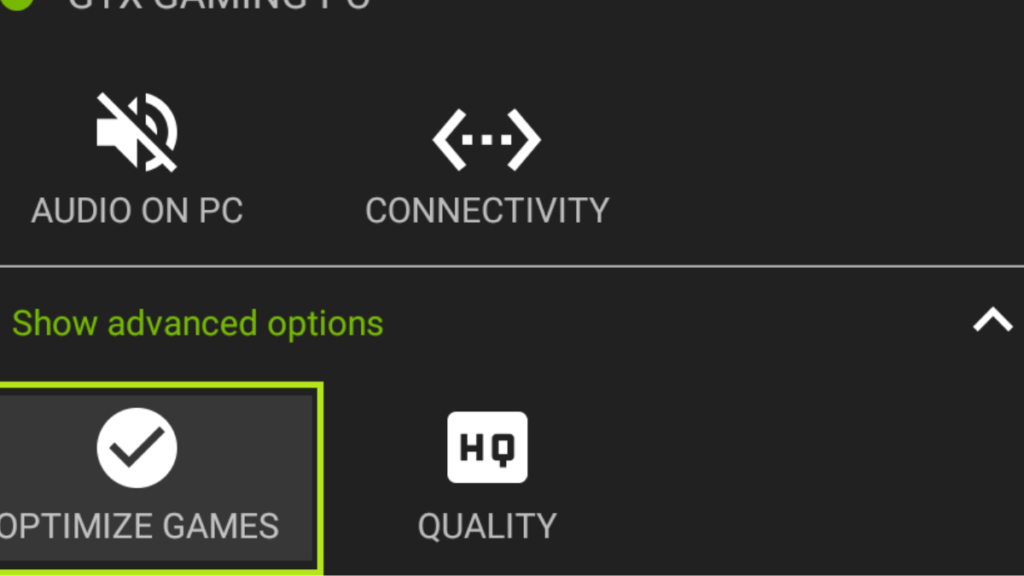
NVIDIA GeForce Experience is another valuable tool for gamers, especially those with NVIDIA graphics cards. It offers optimal game settings and includes an overlay feature for monitoring FPS and other performance metrics.
AMD Radeon Software
For AMD users, Radeon Software provides a comprehensive suite of tools, including FPS monitoring and overlay capabilities. It also offers game optimization features to enhance performance.
FRAPS
FRAPS is a well-known tool for monitoring FPS and displaying it on the screen. While it may not offer as many features as some of the other tools, it is simple and effective for those looking for basic FPS monitoring.
By utilizing these free FPS monitoring and overlay tools, gamers can gain valuable insights into their performance and make adjustments to enhance their gaming experience.
Top Free GPU Driver Update Utilities
Keeping your GPU drivers updated is crucial for optimal gaming performance. Outdated drivers can lead to reduced frame rates, glitches, and compatibility issues with new games. Fortunately, several free tools are available to help you keep your GPU drivers up to date.
NVIDIA GeForce Experience Driver Updates
NVIDIA GeForce Experience is a comprehensive tool for NVIDIA GPU owners. It not only updates drivers but also optimizes game settings for the best performance.
Game-Ready vs. Studio Drivers
NVIDIA offers two types of drivers: Game-Ready drivers, which are optimized for the latest games, and Studio drivers, designed for professional applications like video editing and 3D modeling. GeForce Experience helps you choose the right driver based on your needs.
AMD Radeon Software Adrenalin Edition
AMD Radeon Software Adrenalin Edition is a powerful tool for AMD GPU users. It provides driver updates, performance monitoring, and game optimization features.
Intel Driver & Support Assistant
For Intel integrated graphics users, the Intel Driver & Support Assistant is a handy tool that scans your system and provides the latest driver updates.
Driver Booster Free
Driver Booster Free is a versatile tool that updates not just GPU drivers but also other system drivers. It’s a useful utility for keeping your entire system up to date.

| Tool | GPU Support | Driver Update Frequency | Additional Features |
|---|---|---|---|
| NVIDIA GeForce Experience | NVIDIA GPUs | Regular updates | Game optimization, performance monitoring |
| AMD Radeon Software Adrenalin Edition | AMD GPUs | Regular updates | Performance monitoring, game optimization |
| Intel Driver & Support Assistant | Intel integrated graphics | Periodic updates | System scanning, driver update notifications |
| Driver Booster Free | Multiple GPU brands | Frequent updates | System driver updates, backup and restore |
By utilizing these free GPU driver update utilities, gamers can ensure their hardware is running with the latest drivers, enhancing their overall gaming experience.
Free Fan Curve and Temperature Management Tools
Effective fan curve management is crucial for maintaining optimal GPU temperatures during intense gaming sessions. Proper temperature management not only enhances performance but also prolongs the lifespan of your GPU.
MSI Afterburner Fan Control
MSI Afterburner is a powerful tool that allows users to control their GPU fan speeds. By creating a custom fan curve, you can ensure your GPU stays cool under heavy loads.
Creating Custom Fan Curves
To create a custom fan curve in MSI Afterburner, follow these steps:
- Open MSI Afterburner and click on the “Settings” button.
- Navigate to the “Fan” tab.
- Check the box that says “Enable user-defined software automatic fan control.”
- Adjust the fan curve graph according to your preferences.
- Click “Apply” to save your changes.
This allows for a tailored cooling approach, balancing noise and performance.
SpeedFan
SpeedFan is another versatile tool that can monitor and control fan speeds. It’s compatible with a wide range of hardware, making it a valuable asset for temperature management.
Key features include:
- Automatic fan speed adjustment based on temperature readings.
- Support for various hardware configurations.
- Real-time temperature monitoring.
Argus Monitor
Argus Monitor provides detailed temperature monitoring and fan control. It’s particularly useful for those who want to keep a close eye on their GPU and CPU temperatures.
Some of its key features include:
- Real-time monitoring of GPU and CPU temperatures.
- Fan speed control for both GPUs and CPUs.
- Customizable alerts for temperature thresholds.
AMD Radeon WattMan
For AMD GPU users, Radeon WattMan is a powerful tool integrated into the Radeon Software. It allows for detailed control over GPU frequencies, voltages, and fan speeds.
Key benefits include:
- Advanced fan control for optimized cooling.
- Real-time monitoring of GPU performance and temperatures.
- Customizable profiles for different applications.
By utilizing these free tools, gamers can significantly enhance their GPU’s performance and longevity. Effective temperature management is key to a stable and high-performance gaming experience.

Game Optimization and Boost Software
For gamers seeking to maximize their system’s potential, game boost software is an invaluable resource. These tools are designed to optimize system performance, ensuring a smoother gaming experience.
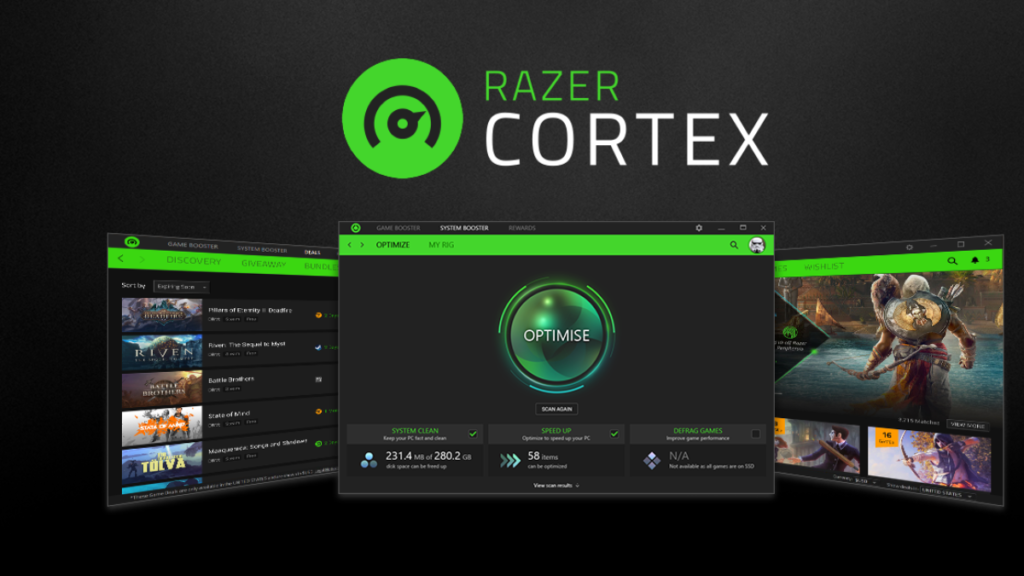
Razer Cortex: Game Booster
Razer Cortex is a popular game booster that offers a range of features to enhance gaming performance. Its primary function is to optimize system resources for gaming.
Game Boosting Features
Razer Cortex’s game boosting features work by optimizing system resources to allocate more power to games, reducing lag and improving overall performance. This results in a more responsive gaming experience.
System Cleanup Tools
In addition to game boosting, Razer Cortex includes system cleanup tools to remove unnecessary files and data, freeing up disk space and further enhancing system performance.
Wise Game Booster
Wise Game Booster is another effective tool for game optimization. It works by identifying and closing unnecessary processes, thereby allocating more system resources to games.
Game Fire Free
Game Fire Free is designed to optimize system settings for gaming, providing a more streamlined gaming experience. It achieves this by tweaking system configurations to prioritize gaming performance.
Process Lasso
Process Lasso is a unique tool that optimizes CPU performance for games and other applications. It does this by dynamically adjusting CPU affinity and priority for running processes.
By utilizing these game optimization and boost software tools, gamers can significantly enhance their gaming experience, enjoying smoother performance and reduced lag.
System Optimization Tools for Better Gaming Performance
To achieve smoother gameplay, it’s essential to optimize your system with the right tools. System optimization involves cleaning up unnecessary files, managing system resources, and tweaking settings for better performance.
Key Tools for System Optimization
CCleaner Free
CCleaner is a popular tool for cleaning temporary files, system files, and registry entries that can slow down your system. By removing these unnecessary files, CCleaner can help improve your system’s overall performance, making it a valuable tool for gamers.
Advanced SystemCare Free
Advanced SystemCare is another comprehensive tool that offers system cleaning, registry repair, and performance optimization. It helps in identifying and fixing issues that could be impacting your system’s performance, thus enhancing your gaming experience.
Mem Reduct
Mem Reduct is a memory optimization tool that helps in freeing up RAM by clearing unnecessary memory usage. This can be particularly useful during gaming sessions when system resources are heavily utilized.
Windows Game Mode
Windows Game Mode is a built-in feature in Windows 10 that optimizes your system for gaming by prioritizing resources for the game you’re playing. It helps in reducing lag and improving overall gaming performance.
By utilizing these system optimization tools, gamers can ensure their systems are running at peak performance, thereby enhancing their gaming experience. As “A well-optimized system is the backbone of a great gaming experience.” – a quote that resonates with many gamers and experts alike.
In conclusion, incorporating these tools into your gaming routine can make a significant difference in your gaming performance. Whether you’re a casual gamer or a professional, optimizing your system is a step worth taking.
Hardware-Specific Optimization Considerations
Hardware-specific optimization is key to unlocking your system’s full gaming potential. Different components require tailored approaches to maximize performance.
NVIDIA vs. AMD GPU Optimization
The choice between NVIDIA and AMD GPUs significantly impacts gaming performance. NVIDIA GPUs benefit from GeForce Experience, which optimizes game settings and drivers for the best performance. Meanwhile, AMD GPUs rely on Radeon Software Adrenalin Edition for similar optimizations. Understanding the strengths and weaknesses of your GPU brand is crucial for effective optimization.
CPU-Specific Performance Tools
CPU performance is another critical factor in gaming. Tools like Process Lasso help manage CPU resources, prioritizing gaming performance. For Intel CPUs, the Intel Driver & Support Assistant ensures that drivers are up-to-date, potentially improving performance.
RAM and Storage Optimization
Adequate RAM and fast storage are vital for smooth gaming. Ensuring that your system has enough RAM and using an NVMe SSD can significantly reduce loading times and improve overall gaming performance. Tools like Mem Reduct help optimize RAM usage, freeing up resources for games.
By focusing on these hardware-specific optimization strategies, gamers can significantly enhance their gaming experience, achieving smoother performance and faster loading times.
Conclusion: Maximizing Your Gaming Experience with Free FPS Tools
By leveraging the right combination of free FPS tools, gamers can significantly enhance their gaming experience. From monitoring and overlay tools like MSI Afterburner to driver update utilities such as NVIDIA GeForce Experience, each tool plays a crucial role in optimizing system performance.
Maximizing your gaming experience involves understanding your system’s capabilities and utilizing the appropriate tools to boost FPS. By combining fan curve management tools like SpeedFan with game optimization software such as Razer Cortex, you can achieve a smoother gaming experience.
Free FPS tools offer a comprehensive solution to common gaming performance issues. By exploring and utilizing these tools, gamers can enjoy improved frame rates, reduced lag, and an overall enhanced gaming experience. The key is to experiment with different tools to find the optimal combination that works for your specific hardware and gaming needs.
By adopting these free FPS tools and techniques, you can take your gaming to the next level, enjoying a more immersive and responsive experience. Start exploring these tools today to maximize your gaming performance.
FAQ
What are the best free tools to boost FPS in gaming?
The best free tools to boost FPS include overlay and monitoring tools like MSI Afterburner, driver updaters such as NVIDIA GeForce Experience, fan curve management tools like SpeedFan, and game boost software including Razer Cortex: Game Booster.
How do I measure my current FPS?
You can measure your current FPS using tools like FRAPS, MSI Afterburner with RivaTuner, or the built-in FPS counters in some games.
What is the importance of keeping GPU drivers up to date?
Keeping GPU drivers up to date is crucial for optimal gaming performance as updates often include performance enhancements and bug fixes.
Can fan curve management improve gaming performance?
Yes, proper fan curve management can help maintain optimal GPU temperatures, potentially improving gaming performance by preventing thermal throttling.
How do game optimization and boost software work?
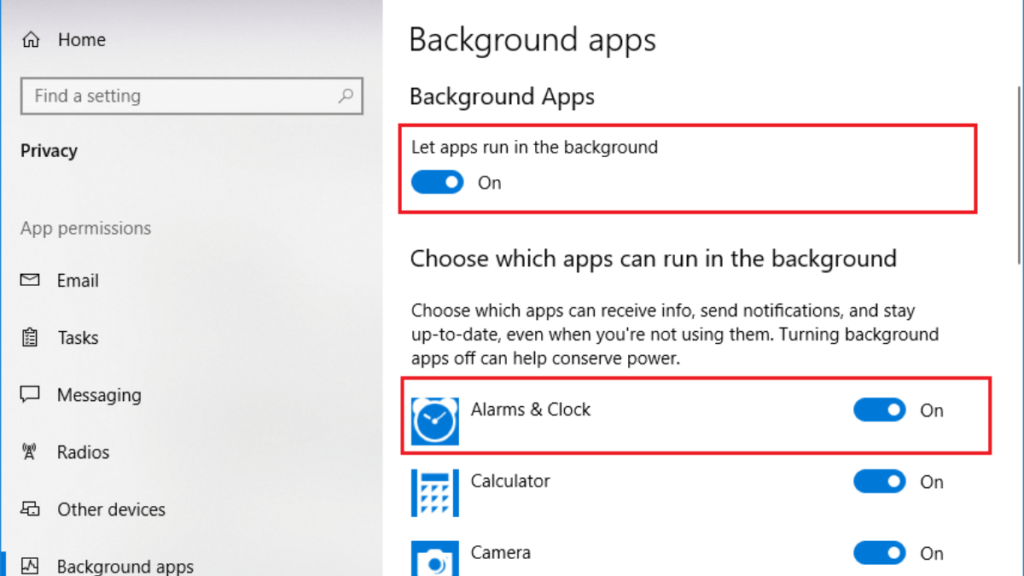
Game optimization and boost software work by optimizing system resources, closing unnecessary background processes, and sometimes tweaking game settings for better performance.
Are there any system optimization tools that can improve gaming performance?
Yes, tools like CCleaner Free, Advanced SystemCare Free, and Mem Reduct can help optimize system resources for better gaming performance.
What is the difference between NVIDIA and AMD GPU optimization?
NVIDIA and AMD GPUs have different architectures and thus require different optimization strategies, with tools like NVIDIA GeForce Experience and AMD Radeon Software Adrenalin Edition providing tailored optimizations.
How can I optimize my RAM and storage for gaming?
Optimizing RAM and storage for gaming involves ensuring sufficient RAM, using fast storage solutions like SSDs, and closing unnecessary background applications to free up resources.
Is it necessary to use all the mentioned tools together?
While using multiple tools together can potentially offer the best results, it’s not necessary to use all of them. Experimenting with different combinations can help you find what works best for your system.