
Arknights: Endfield PC Graphics Settings
Arknights: Endfield PC high frame rate and visual quality settings guide! Detailed explanation of hardware requirements (RTX 2060, 16GB memory, SSD), optimization tips

PC hardware requirements for Arknights
Arknights Endfield graphics settings are the key to achieving high FPS and stable performance on PC while maintaining good visual quality. This guide breaks down the recommended hardware requirements, basic optimization steps, and in-game graphics adjustments to help you get the best possible experience.
To get Arknights: Endfield running smoothly at high visual quality, your PC needs to clear a pretty specific bar. This isn’t optional tuning stuff yet. This is the foundation everything else sits on.
Storage space is the most critical preparation. the official recommendation is to reserve 55GB or more of storage space for the game itself. it is important to note that during installation and file extraction, the system will also require an additional 45GB of temporary storage. therefore, before installing, make sure the target drive has at least 100GB of free space available.
- Operating system: windows 10 64-bit or above is required.
- Processor: an intel core i7-10700K or an equivalent or higher performance processor is recommended.
- Graphics card: the minimum requirement is an nvidia geforce gtx 1060 or equivalent. for better visual quality and a smoother high frame rate experience, an nvidia geforce rtx 2060 or equivalent or higher is recommended.
Memory: 16GB of RAM is required. - Storage drive: beyond capacity requirements, it is strongly recommended to install the game on a solid-state drive (SSD). this will significantly improve loading times and scene streaming performance, which has a major impact on the open world experience.

Arknights: Endfield
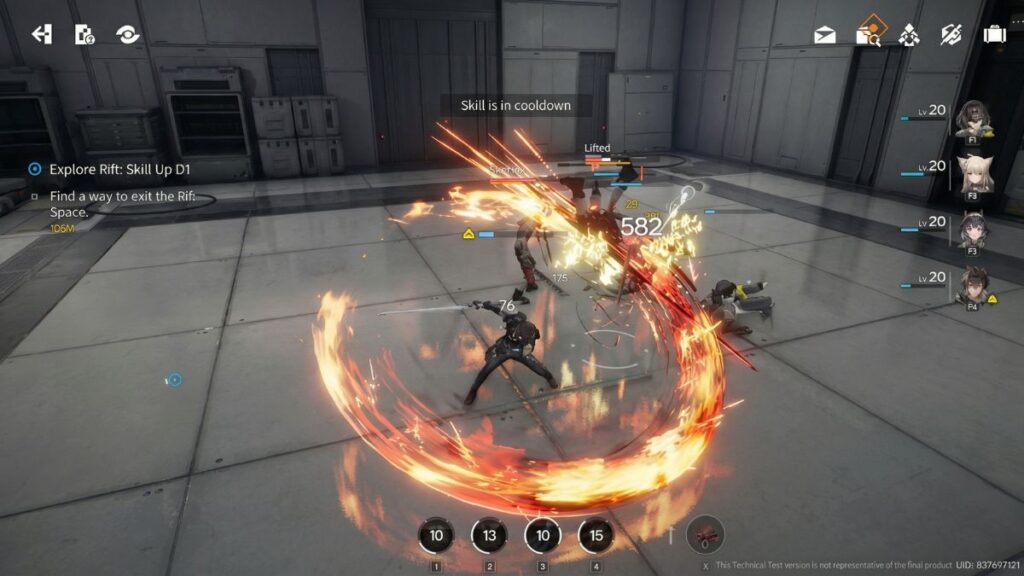
SCI-FI RPGArknights: Endfield is a sci-fi RPG featuring real-time combat, strategic squad management, open-world exploration, and factory-building mechanics in a visually stunning futuristic universe.
On the foundation of meeting hardware requirements, certain settings and habits can effectively improve and stabilize in-game frame rates.
Ensure installation on an SSD. As mentioned earlier, installing the game on a solid-state drive can greatly reduce scene loading times and prevent stuttering caused by data read delays. This is one of the most effective steps to improve the overall experience.
Manage background applications. Before launching the game, try to close unnecessary background programs to free up more system memory and CPU resources, allowing the game to take full advantage of available performance.
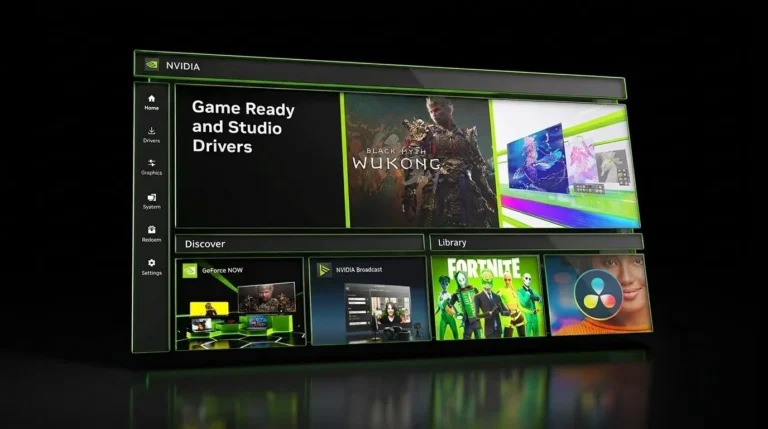
Update graphics drivers. Make sure your graphics card drivers are updated to the latest version. New drivers often include performance optimizations and stability fixes specifically for popular games.
In-game graphics settings are the main way to balance visual quality and frame rate. Depending on your hardware performance, you can fine-tune these settings using the general approach below.
If your system meets or exceeds the recommended specifications, such as an RTX 2060, 16GB of memory, and an SSD, you can start by launching the game with a higher graphics preset. Make sure the resolution matches your monitor, like 1920×1080 or 2560×1440. If the frame rate stays stable, for example at 60 fps or higher, you can slowly increase options such as texture quality, shadow quality, and effects detail, since these have a clear impact on visuals. Anti-aliasing deserves special attention. Higher-quality options like TAA improve image smoothness but also use more performance.
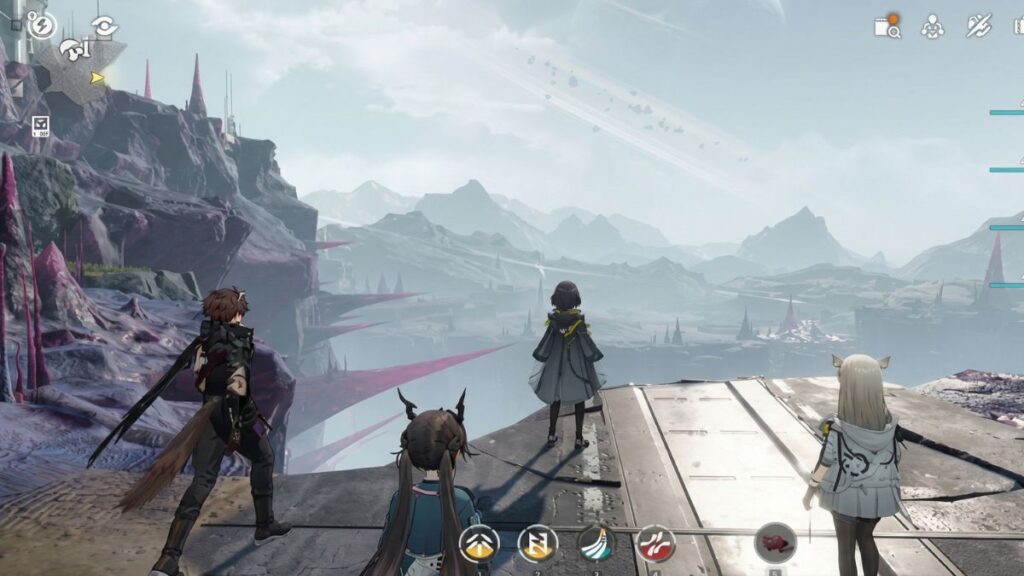
For players who only meet the minimum requirements or are close to their system’s limits, keeping a stable frame rate during combat and exploration should be the top priority. It’s best to start with low or medium presets. Lowering the resolution or enabling render scale reduction, such as setting it to 90 percent, often provides the biggest performance gain. After that, focus on reducing or disabling demanding settings like shadow quality, ambient occlusion, and post-processing effects. View distance can also be lowered to reduce the load of rendering distant environments.
Based on hands-on performance testing, the game delivers a full gameplay loop that includes map exploration, resource gathering, base building, and character progression. This structure places relatively high demands on a system’s graphics processing power. During boss fights in particular, where enemies have large health pools and complex skill mechanics, a stable frame rate has a direct impact on combat fluidity and input responsiveness. For this reason, adjusting visual settings based on your hardware and prioritizing smooth performance is the key to a better overall experience. Players with more limited hardware may want to keep an eye on future official optimization updates.
When tuning performance, these Arknights Endfield graphics settings should be adjusted carefully based on your PC hardware to maintain high FPS without sacrificing visual quality.
Overall, these Arknights Endfield graphics settings provide a balanced approach to PC performance, helping players achieve stable frame rates and smooth gameplay across different hardware configurations.
👉 Download Arknights: Endfield for free (official windows download)
By fine-tuning these Arknights Endfield graphics settings, PC players can maximize performance, reduce stuttering, and maintain consistent FPS during demanding gameplay scenarios.

Allen Wade is a Senior PC Hardware & Performance Analyst at PerfCore with over 8 years of experience benchmarking CPUs, GPUs, gaming laptops, and system architectures. He specializes in 1080p and 1440p frametime analysis, thermal dynamics, and budget component optimization. Allen’s hardware testing methodology relies on standardized test benches, repeatable CapFrameX frametime captures, and clean OS environments.