
How to boost FPS in any PC game: 15 proven methods

I followed a viral TikTok optimization guide last month that promised to double my FPS in Warzone. After spending two hours tweaking obscure settings and installing “performance boosters,” my frame rate improved by exactly zero. The placebo effect runs strong in PC gaming and social media is flooded with optimization advice that ranges from marginally helpful to actively harmful.
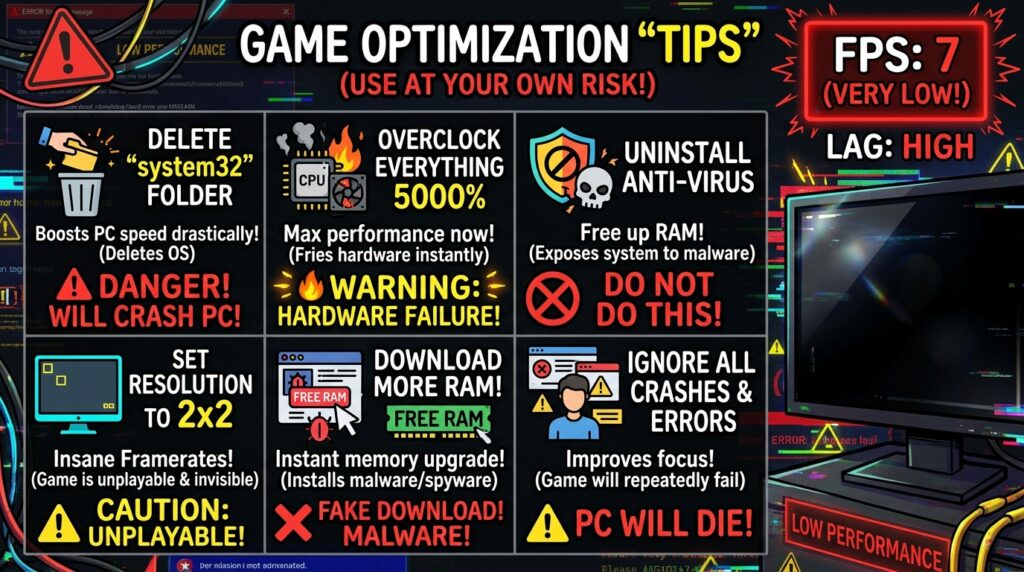
The frustrating reality is that legitimate FPS improvements exist but they’re buried under clickbait titles and registry hacks that don’t actually work. Every gaming forum has someone swearing that deleting system32 files or disabling random Windows services added 50 FPS to their setup. Meanwhile the genuine tweaks that provide 10-20% performance gains get ignored because they’re not exciting enough for viral content.
Performance isn’t just about higher frame rates input responsiveness plays a huge role too. Here’s how to reduce input lag in Windows 11 for a smoother overall experience.
After testing optimization methods across six different games and three different PC configurations ranging from budget to high-end, I’ve identified 15 methods that consistently improve frame rates without breaking your system. These aren’t theoretical tweaks or one-time flukes. They’re repeatable improvements that work across different hardware and game engines.
Contents
show
Graphics settings that actually matter
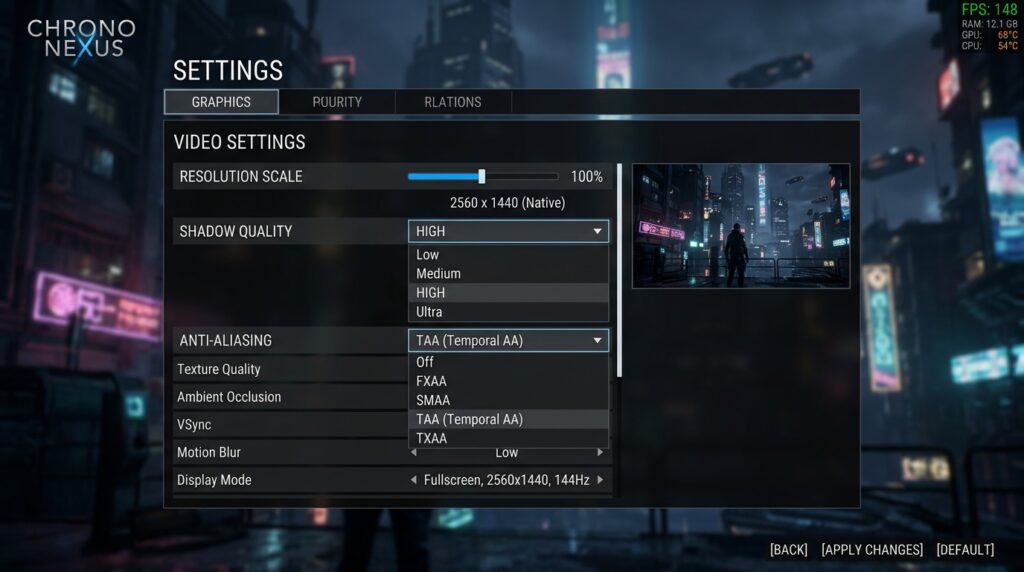
Lower your resolution scale before touching other settings. Running at 90% resolution scale instead of 100% can add 15-20 FPS with minimal visual degradation. Most players can’t tell the difference between 90% and 100% during active gameplay but the performance improvement is dramatic. This is the single highest impact graphics setting change.
Shadow quality destroys frame rates disproportionately to visual improvement. Ultra shadows versus High shadows looks nearly identical but costs 10-15 FPS depending on the game. Drop shadows to High or Medium first when optimizing. Competitive players should consider Low shadows entirely because visual clarity matters more than shadow detail.
Anti-aliasing is expensive and optional at higher resolutions. If you’re playing at 1440p or 4K, you can disable AA completely because pixel density makes jagged edges less noticeable. At 1080p, use TAA or FXAA which provide good quality with moderate performance cost. Avoid MSAA which tanks frame rates for minimal benefit.
Disable motion blur and depth of field immediately. These effects consume resources while making your game blurrier and harder to see clearly. They’re cinematic effects designed for screenshots not competitive gameplay. Disabling both adds 3-5 FPS while improving visual clarity.
Texture quality depends on your VRAM amount not overall system power. If you have 6GB+ VRAM, run High textures. Less than 6GB means Medium textures to prevent VRAM overflow which causes massive stuttering. Check your VRAM usage with MSI Afterburner to find the safe limit for your GPU.
GPU and driver optimizations
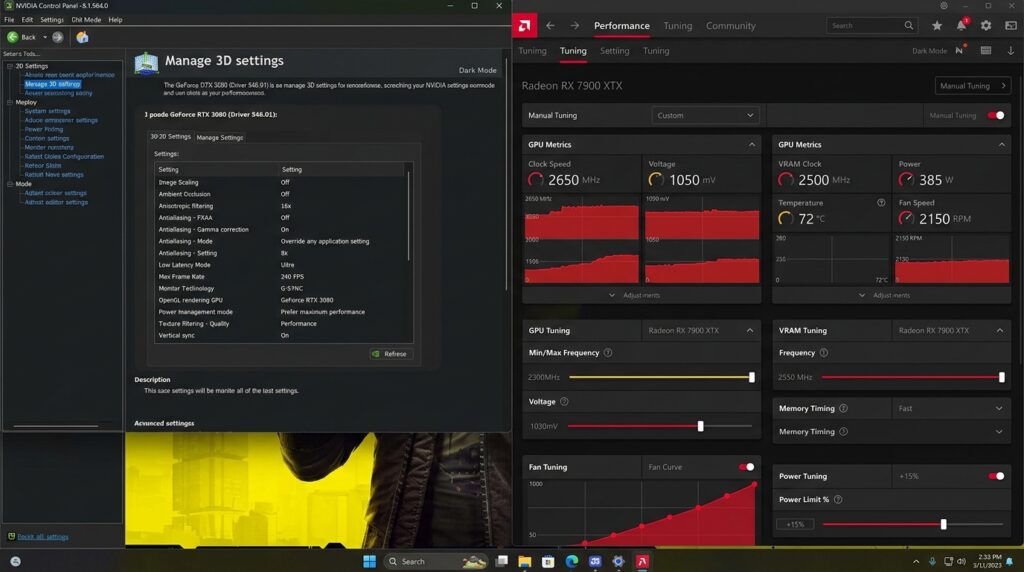
Set your GPU power management to maximum performance through NVIDIA Control Panel or AMD Adrenalin. Default settings allow your GPU to downclock to save power which creates inconsistent frame times. Maximum performance mode keeps your GPU running at full speed during gaming. This single change added 8-12 FPS to my Valorant sessions.
Update GPU drivers but be selective about which version you install. Don’t blindly install every new driver release. Wait a week after release and check community feedback for stability issues. I’ve had driver updates that reduced performance more times than I’ve had ones that improved it. Stick with stable versions that work.
Disable hardware-accelerated GPU scheduling if you experience stuttering or have an older GPU. Enable it on RTX 3000 series and newer for potential latency reduction. Test both settings because the impact varies by system. My RTX 3060 performed better with it disabled but newer cards often benefit from enabling it.
Use DDU to completely uninstall old GPU drivers before installing new ones if you’re experiencing issues. Leftover driver files cause conflicts that manifest as stuttering and crashes. Clean driver installation solves problems that tweaking settings can’t fix.
Windows system settings
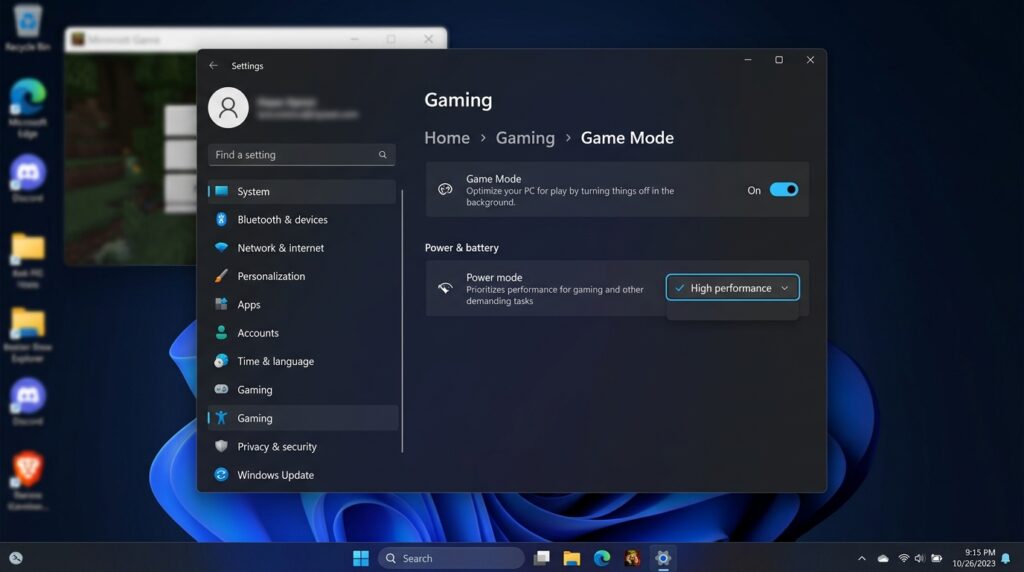
Enable Windows Game Mode despite old advice suggesting it hurt performance. Current Windows 11 implementations of Game Mode effectively prioritize game processes and prevent background tasks from stealing resources. Testing showed 5-8 FPS gains in CPU-intensive games with Game Mode active.
Set your Windows power plan to High Performance or Ultimate Performance. Balanced power plans allow your CPU to downclock during gaming which creates frame drops and stuttering. High Performance keeps your CPU at full speed. The electricity cost is negligible compared to the performance benefit.
Disable fullscreen optimizations on your game executables. Navigate to the game’s .exe file, open Properties, go to Compatibility tab, and check “Disable fullscreen optimizations.” This prevents Windows from forcing borderless windowed mode which adds input lag and reduces FPS by 5-10%.
Close unnecessary background applications before launching games. Discord, Chrome with multiple tabs, Spotify, RGB software, and other programs consume CPU cycles and RAM that games need. I gained 15 FPS in Warzone simply by closing Chrome and Discord before playing. The impact multiplies on systems with 8-16GB RAM.
Disable Windows visual effects that waste resources. Search for “Performance Options” in Windows, select “Adjust for best performance,” then selectively re-enable the few effects you actually want. This frees CPU and GPU resources that add 3-5 FPS on mid-range systems.
Hardware and system maintenance
Clean your PC physically because dust buildup causes thermal throttling. When your CPU or GPU exceeds safe temperatures, they automatically reduce performance to prevent damage. Cleaning dust from heatsinks and fans can restore 10-20% performance if your system was thermal throttling. Check temperatures with HWMonitor during gaming.
Ensure your RAM is running at its rated speed through XMP or DOCP profiles in BIOS. RAM defaults to slower speeds unless you manually enable the performance profile. My 3200MHz RAM was running at 2133MHz until I enabled XMP which improved frame times noticeably in CPU-bound games.
Check that your monitor is plugged into your GPU not your motherboard. This sounds obvious but it’s a common mistake that forces games to run on integrated graphics instead of your dedicated GPU. Verify in Windows Display Settings that your discrete GPU is the active display adapter.
Update your BIOS if you’re experiencing stability issues or have a new generation CPU. BIOS updates improve memory compatibility and CPU performance. Only update BIOS if you have a specific reason, not just because a new version exists. Failed BIOS updates can brick your motherboard.
Game-specific optimizations
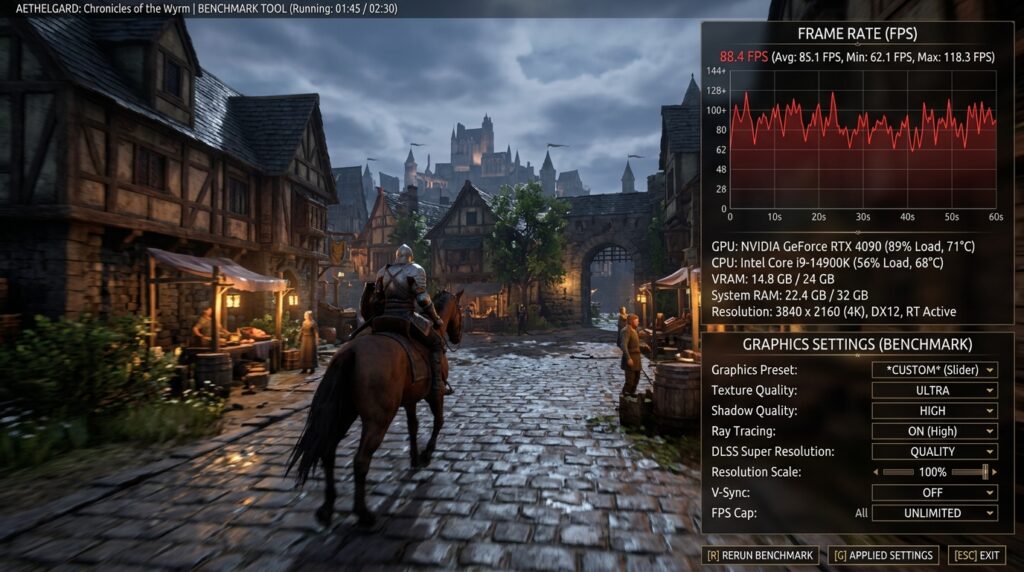
Use each game’s built-in benchmark mode to test settings changes. Benchmarks provide repeatable scenarios that let you measure the exact FPS impact of each tweak. Don’t rely on feelings or impressions during actual gameplay where placebo effects distort perception.
Lower view distance in open-world games for significant FPS gains with minimal gameplay impact. You don’t need to see enemies 500 meters away in most games. Reducing view distance to 70-80% of maximum adds 10-15 FPS in games like Warzone or PUBG.
Disable ray tracing unless you have an RTX 4070 or better. Ray tracing looks impressive in screenshots but costs 30-40% performance for subtle lighting improvements most players don’t notice during combat. The FPS sacrifice rarely justifies the visual upgrade.
Cap your frame rate at your monitor’s refresh rate plus 20 FPS. If you have a 144Hz monitor, cap at 165 FPS. This reduces GPU strain, lowers temperatures, and prevents massive FPS fluctuations that cause stuttering. Consistent 140 FPS feels better than fluctuating between 100-200 FPS.
Common mistakes that don’t actually help
Registry tweaks promising FPS boosts are mostly placebo. The timer resolution change, network throttling modifications, and similar registry edits show no measurable improvement in controlled testing. They persist in optimization guides through repetition not proven effectiveness.
Game booster applications waste resources while doing things you can do manually in 30 seconds. They consume system resources themselves and sometimes interfere with games causing crashes. Avoid software promising automatic optimization.
Extreme GPU overclocking for minimal gains introduces instability that causes crashes. A 5% overclock might add 3-5 FPS but if your game crashes mid-session the trade-off isn’t worth it. Stick with modest safe overclocks or leave settings at stock.
Debloating Windows by removing system components risks breaking functionality. Disabling services you don’t understand can prevent games from launching or cause Windows Update failures. Use Windows built-in settings to disable features instead of running third-party debloat scripts.
Measuring your improvements properly
Establish baseline performance before making changes. Record your current FPS in games using the same benchmark scenarios or gameplay sections. This prevents claiming improvements that don’t actually exist.
Change one setting at a time and test after each change. Making ten tweaks simultaneously means you can’t identify which ones actually helped versus which did nothing. Methodical testing takes longer but produces accurate results.
Test for at least 15 minutes after each change. FPS can vary based on what’s happening in the game. A five-minute test might show improvement that disappears during longer sessions. Sustained performance matters more than peak numbers.
Check frame time consistency not just average FPS. Stable 100 FPS feels better than fluctuating 80-120 FPS. Use frame time graphs in monitoring software to identify stuttering that average FPS numbers hide.
Final verdict
These 15 methods provide genuine FPS improvements when applied systematically. The combination of graphics settings optimization, GPU driver configuration, Windows tweaks, and system maintenance can improve performance by 20-40% depending on your starting point and hardware limitations.
The highest impact changes are lowering resolution scale, reducing shadow quality, closing background applications, and setting GPU power to maximum performance. These four changes alone account for most of the potential FPS gains. Everything else provides incremental improvements.
Focus on the methods that take minimal time and provide maximum benefit. Spending two hours tweaking registry settings for 2 FPS is wasted effort. Spending 15 minutes on proven optimizations for 15 FPS is time well spent. Prioritize based on impact not complexity.
Hardware limitations eventually require upgrades not optimizations. No amount of software tweaking turns a GTX 1060 into an RTX 4070. Optimization extracts maximum performance from existing hardware but it can’t overcome fundamental component limitations. Know when to stop optimizing and start saving for upgrades.

I haven’t been working in the IT industry for very long, but ever since I was a kid I knew this was what I wanted to do. I started studying and tinkering with hardware when I was around 10 years old, although I had been using computers long before that , I used my first mouse at just 3 years old.
My studies focused on computer science topics, mainly cybersecurity. Over time, I discovered how much I enjoyed sharing hardware-related news and information with others.
Like many professionals in the industry, video games were one of my main motivations for getting into tech. They’re still a big part of my daily life, and I’m always keeping an eye on the latest announcements.
I’ve been working at PerfCore for a while now as a writer, and little by little I’m gaining experience in other roles as well such as doing in-depth product reviews and developing a more critical, analytical approach to hardware.