
How to choose a gaming laptop in 2026

Lately, the gap between gaming laptops and desktops has been steadily shrinking, both in price and in performance.
Still, picking the right gaming laptop isn’t as simple as comparing hardware specs. You’re buying the whole computer at once, including the built-in keyboard and display. In this guide, we’ll walk through the key decisions you’ll need to make so you can choose a model that matches your needs and budget as closely as possible.
Table of Contents
In a nutshell
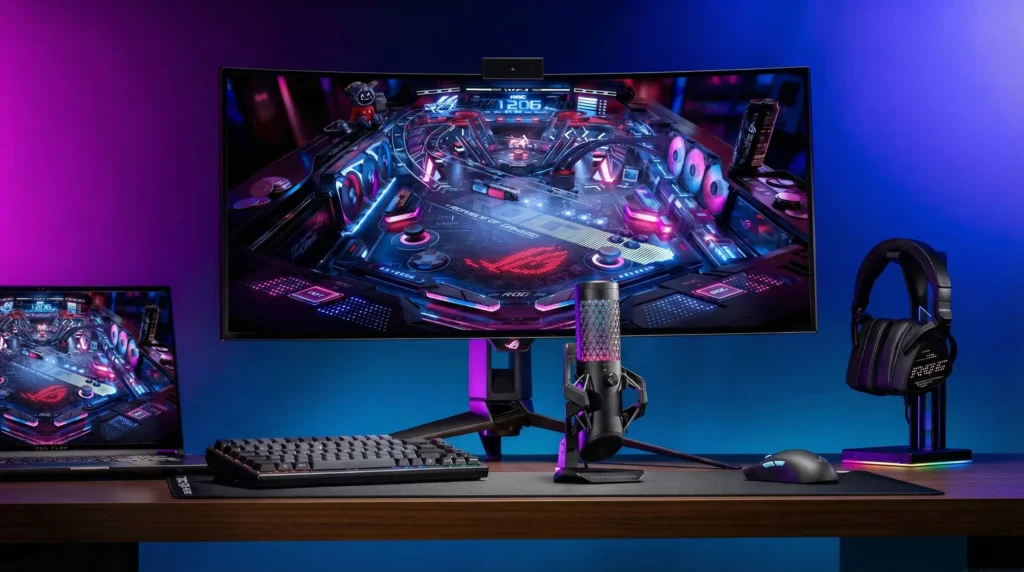
Look for a strong graphics card. Most games depend heavily on the GPU, and in a laptop you can’t upgrade it later. The better the graphics card, the longer you’ll be able to play on high settings.
Think about future upgrades. Many laptops (though not all) let you add memory and storage over time.
Decide what matters more: resolution or speed. The fastest laptop displays now reach 360 Hz, but those panels are typically limited to 1920 × 1080. A 4K screen will be slower, but it wins on pixel density. At the same time, on a smaller laptop screen, ultra-high resolution can be overkill, so it’s worth finding the “sweet spot.”
Choose a better keyboard. You probably won’t want to play on keys that are too stiff, or on the other end, feel mushy. You also don’t want to be forced to plug in an external keyboard.
Don’t expect long battery life. Only a few gaming laptops can run for 8 hours or longer on a charge. And when you’re on battery power, laptops usually reduce CPU and GPU clock speeds, so you’ll need to be plugged in to get maximum performance anyway.
Choosing a graphics card
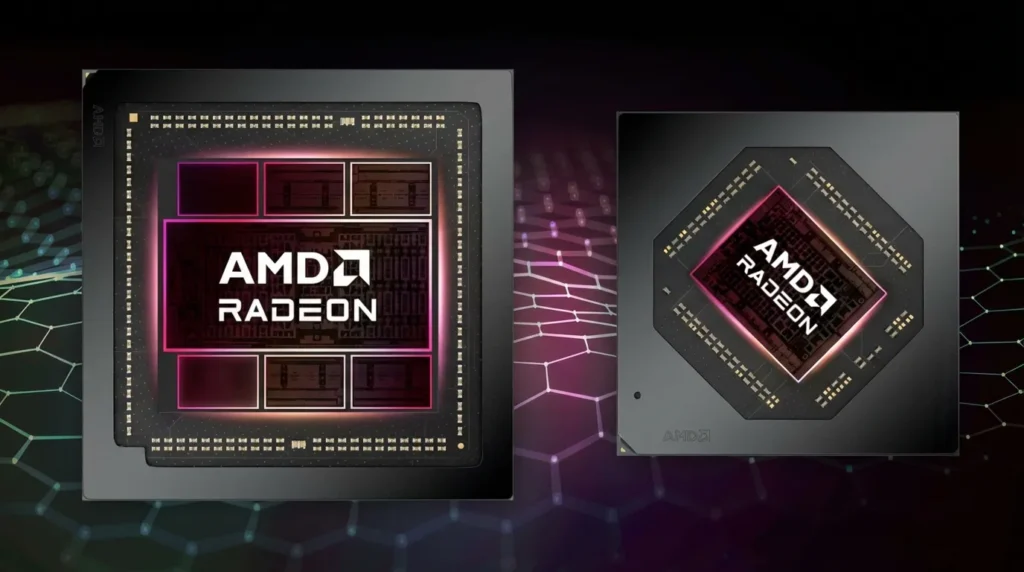
Some games are CPU-heavy, but most are driven by the graphics card. That makes the GPU the single most important choice when you’re shopping for a gaming laptop. Right now, most models come with Nvidia GeForce GTX or RTX graphics.
Nvidia’s latest GPUs are in the RTX 40-series lineup, represented in the mobile segment by models from the RTX 4060 up to the RTX 4090 Ti, though laptops with RTX 50-series graphics are expected to arrive later this year. AMD offers the Radeon RX 7000M and 7000S series, including the RX 7600S for budget systems, plus the RX 7800M and RX 7900M for higher-performance machines.
In the premium segment, RTX models dominate. If you’re shopping on a tighter budget, this is actually a good moment to buy: with a new GPU lineup on the way, many previous-generation laptops are selling at solid discounts. On the other hand, it might be worth waiting and getting a next-generation GPU with features like DLSS4 and multi-frame generation. It comes down to whether you want the newest tech right now, or you’d rather not try to outrun progress.
In broad terms, laptop GPUs can be grouped like this:
Entry level: if you don’t need max settings, you can absolutely get by with a GTX 1650, RTX 3050, or RX 5500M. They’ll run most modern games, just not at the highest graphical quality. An RTX 4060 is noticeably faster, but it also costs more, so you’ll need to decide if the extra money is worth it (in our opinion, it is if you want to play new AAA releases). As a rule, laptops in this category cost about 80,000 to 150,000 rubles.
Mid-range: in gaming laptops, the GeForce RTX 4060 is a common “sweet spot” that can handle most games on max settings. The RTX 4070 is much faster, but laptops with it will cost more. On the AMD side, the RX 6700M is weaker, but it still gets the job done. Systems in this range typically cost around 120,000 to 250,000 rubles.
Max settings and VR: with an RTX 4070, you’ll be able to run “ultra” settings in nearly any game. The RTX 4080 and RTX 4090 are the most powerful cards in the 40-series, offering excellent VR quality and advanced effects. Prices here are basically unlimited and can easily exceed 300,000 rubles. With these machines, you’ll be ready for the newest ray-traced games, even at 4K, and you can mostly forget about upgrades for the next few years—at least until a new console generation arrives and developers start targeting that baseline.
If you’re looking at laptops with an APU (meaning no discrete graphics and only a GPU built into the processor), AMD-based options are worth considering. Intel often pairs its APUs with relatively weak integrated graphics like Intel Iris Xe, which is really only enough for something like World of Tanks at medium settings. AMD, on the other hand, can deliver more serious results with Radeon 680M and Radeon 780M graphics.
With those, you can play titles like The Witcher 3: Wild Hunt, Cyberpunk 2077, Forza Horizon 5, and others on high settings with comfortable frame rates.
Other specs
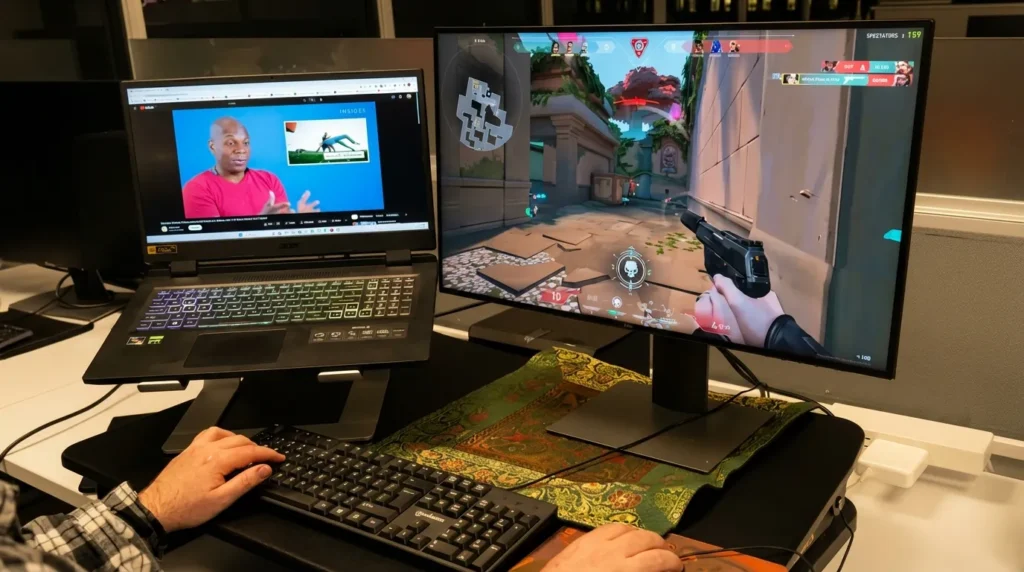
The graphics card is the biggest factor, but you still need a solid processor, plus enough RAM and storage.
Processor: if your budget allows, you can choose a powerful CPU such as a Core i7 or Ryzen 7, or even an overclockable option like the Core i9-13900HX. In most games, though, the GPU matters more, so a Core i5 or Ryzen 5 is usually enough. And overclocking in a laptop—with cooling that’s less effective than a desktop—often delivers little benefit, or can even hurt overall performance. If you find a laptop with an older or less powerful processor than Intel’s 13th and 14th generation Core chips, you can save some money. Just remember that you usually can’t replace a laptop CPU later, so this is a one-time decision.
Memory: games can be demanding, so even for moderate use we recommend 8 GB of RAM. For gaming, it’s better to aim for 16 GB when possible. Laptops with an RTX 3050 or 3050 Ti often ship with 8 GB. Models with an RTX 4060 or higher usually come with 16 GB or even 32 GB. If you can’t afford 16 GB right now, try to choose a laptop that allows upgrades later. Many gaming laptops let you expand RAM, so if you’re comfortable using a screwdriver, you can increase it down the line. It’s not complicated, and guides can help you handle the details.
Storage: you can still find budget gaming laptops with only a hard drive (usually 1 TB), and many models pair that with a small SSD used as a boot drive. But HDD-only setups are becoming less common, since slow and noisy hard drives have largely been replaced by faster, silent SSDs. A larger SSD will significantly improve load times, though it raises the price. For a gaming laptop, an SSD is strongly recommended. Manufacturers typically install a 512 GB or 1 TB SSD, which is enough for the OS and a few games. If you have a big library and switch between titles often, it’s worth thinking about expanding storage. We recommend looking for laptops with an extra M.2 slot for adding another SSD.
If you do use a hard drive, it’s better to choose a faster one that spins at 7,200 rpm rather than 5,400 rpm. Like memory, storage can often be upgraded, so you can add a 2 TB HDD later if you need the space. Still, we don’t recommend using hard drives for anything other than file storage. The OS, apps, and games should live on an SSD.
Display
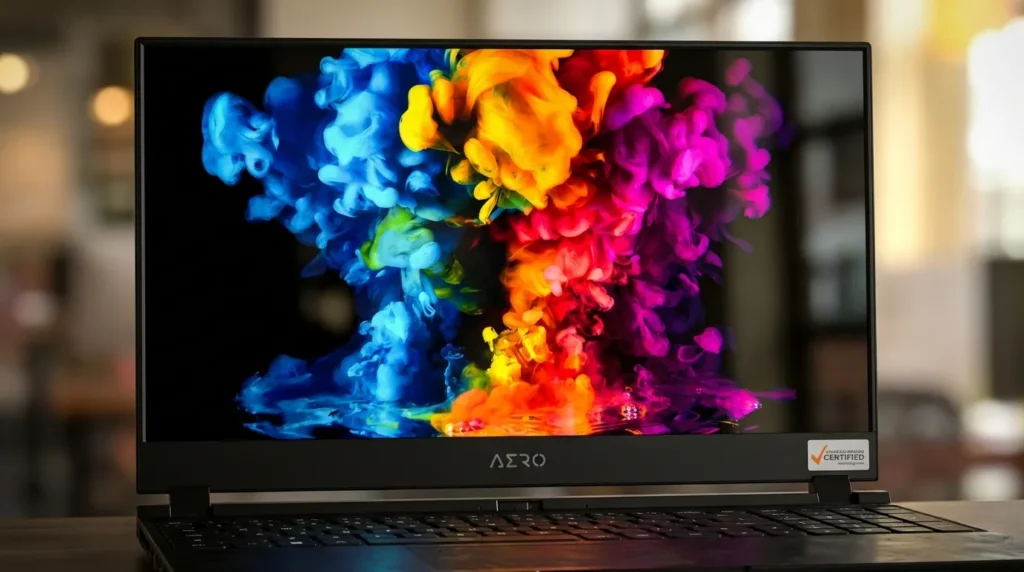
Laptop displays often don’t get the attention they deserve. If you’re not planning to connect your laptop to a monitor or TV, the built-in screen is what determines how your games look.
Size: most gaming laptops come in the 15- to 17-inch range. There are also some 18-inch models, plus a smaller number of 14-inch systems. Size mostly comes down to preference, but keep in mind that a bigger screen usually means a larger, heavier laptop. It depends on whether you’ll carry it often (for example, on business trips) or mostly move it around your home.
Resolution: don’t consider anything below 1920 × 1080 (Full HD), although that’s rare in modern gaming laptops anyway. Some models offer 4K (3840 × 2160), but they cost much more, and not everyone will notice the difference on a small laptop panel. Gaming at 4K can also force you to lower certain settings, especially with ray tracing enabled. In general, Full HD is perfectly fine for gaming laptops because of the smaller screen size. 1440p and 4K look better, but not enough to justify overpaying and then having to compromise by lowering graphics settings.
Refresh rate: most gaming laptops come with 1080p panels at 144 Hz. For most players, that’s plenty, though esports-focused users may want 240 Hz or 360 Hz. Higher-resolution screens (2560 × 1440 or 3840 × 2160) look sharper, but their refresh rates often don’t go beyond 60 Hz, so calling them “gaming” can be a stretch.
OLED: a lot of laptops now ship with OLED displays. They offer deeper blacks, higher contrast, and better color, and they’re often brighter and more vibrant than IPS or TN panels. Some gamers worry about burn-in, though modern protection systems can reduce the risk. And once you’ve used OLED, it can be hard to go back, so the tradeoff may be worth it.
Nvidia G-Sync and AMD FreeSync: some gaming laptops, especially higher-end ones, support sync technologies that match the display to the GPU to reduce tearing and ghosting artifacts.
Avoid touchscreens: they aren’t inherently bad, but they’re not ideal for gaming laptops. They drain the battery faster and tend to be much more reflective.
Keyboard
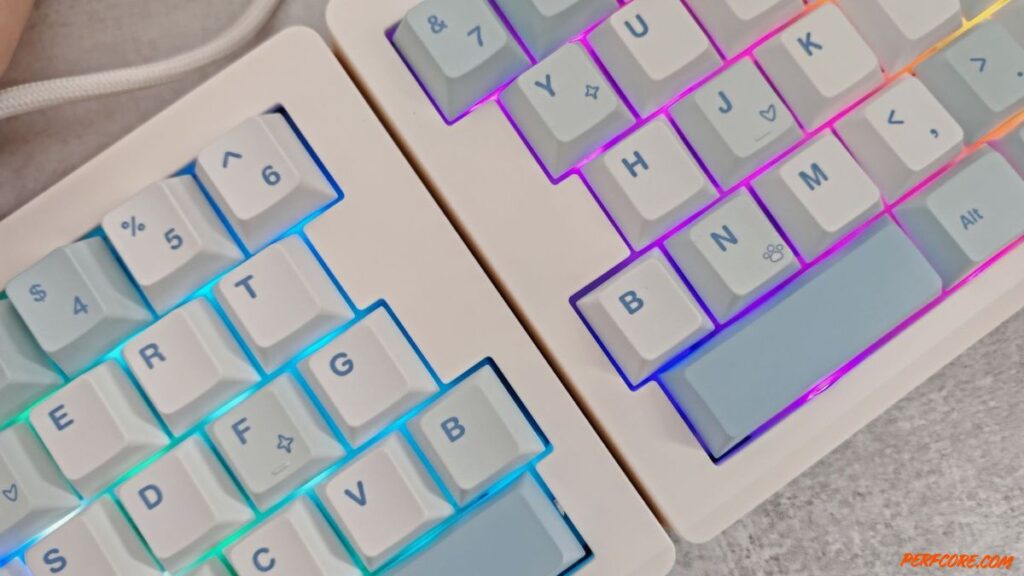
Entry-level gaming laptops usually come with tightly spaced keys and LED backlighting, but there are other keyboard details that matter too.
Key travel: this is how far a key moves when you press it. We recommend more than 1.5 mm, and closer to 2 mm is even better. That helps prevent “bottoming out,” where you slam the key into the base. On the most expensive laptops, you can even find mechanical keys.
Actuation force: this is the pressure needed to press a key. A good target is around 50–65 grams, which gives you resistance without feeling too soft.
Macro keys: macro keys aren’t very common on gaming laptops, but they do exist. A set of programmable keys can make frequent in-game actions easier, usually through the manufacturer’s own software.
Anti-ghosting and NKRO (n-key rollover): these features help you in competitive games. Anti-ghosting means multiple key presses are properly registered at the same time. NKRO means each key is independent and will register no matter what other keys are being pressed.
Backlighting: even budget gaming laptops usually include it, but it’s often single-color. Better keyboards can offer RGB lighting, commonly split into zones, and sometimes customizable per key. On some models, you can switch lighting profiles depending on the game.
Layout: many people buy a gaming laptop for both gaming and work, so layout matters. If you write a lot and work in spreadsheets, a full-size keyboard with a number pad is often the better choice. If you game more than you work, a more compact layout with fewer keys can be a good fit.
Cooling system
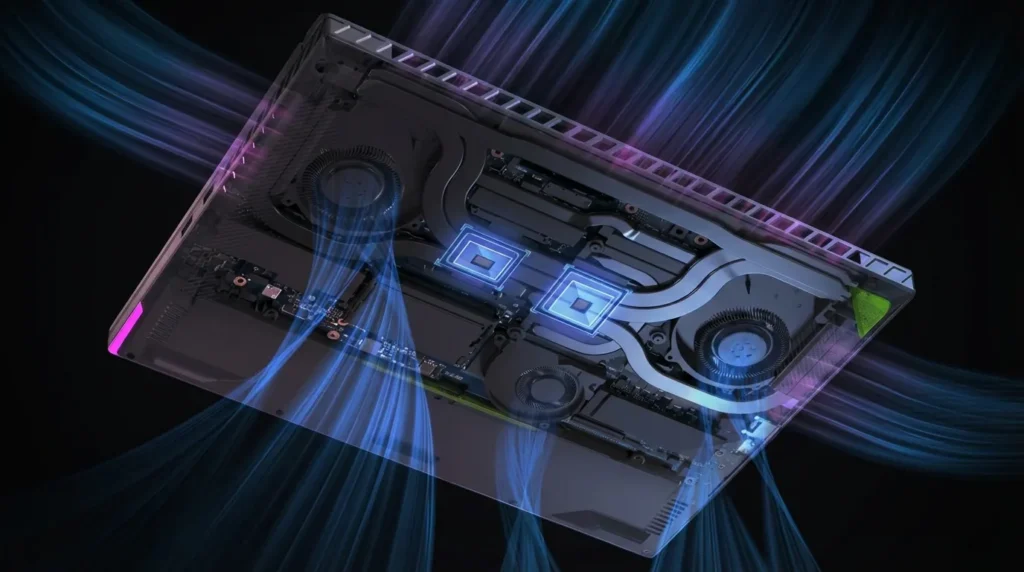
You can’t cheat physics. Powerful components inside a compact laptop chassis will generate heat. To avoid overheating—and the performance drops that come with it—it’s worth paying attention to the cooling system.
Some manufacturers claim their laptops run quietly, but leave out the part where CPU and GPU temperatures can climb past 100°C. We think it’s better for a laptop to be loud than hot. You can always wear headphones while you play.
If you don’t want your everyday machine to sound like it’s taking off, look for models that let you adjust cooling intensity. Many modern laptops have presets for office work, entertainment, and high-performance gaming, letting you raise or lower fan speeds depending on the load.
Either way, it’s smart to read thermal tests for any model you’re considering, so you can confirm the cooling is actually effective. And once you buy, don’t skip regular dust cleaning—clogged vents can quickly undo even a good cooling design.
Should you use a cooling pad? Sometimes it can reduce component temperatures a bit, but it’s not a magic fix. Usually you’re talking about just a few degrees, and sometimes you won’t see much effect at all. Cooling pads can also be bulky and awkward, creating discomfort without much real benefit.
Battery life
Don’t expect miracles from a gaming laptop’s portability. To get full performance in games, you’ll need to be plugged in. On battery, at best you’re usually looking at a little over an hour of gaming. Based on our review experience, for other tasks most gaming laptops last around 2 to 6 hours, and in any case they run shorter than ultra-portables without discrete graphics.
So if you need a machine that can run for 8 hours on battery while you work, a gaming laptop probably isn’t the right choice. Some models can last a long time, but often only by lowering image quality. And you likely won’t want to play on a dark, dim screen that also distorts the picture.
Ports
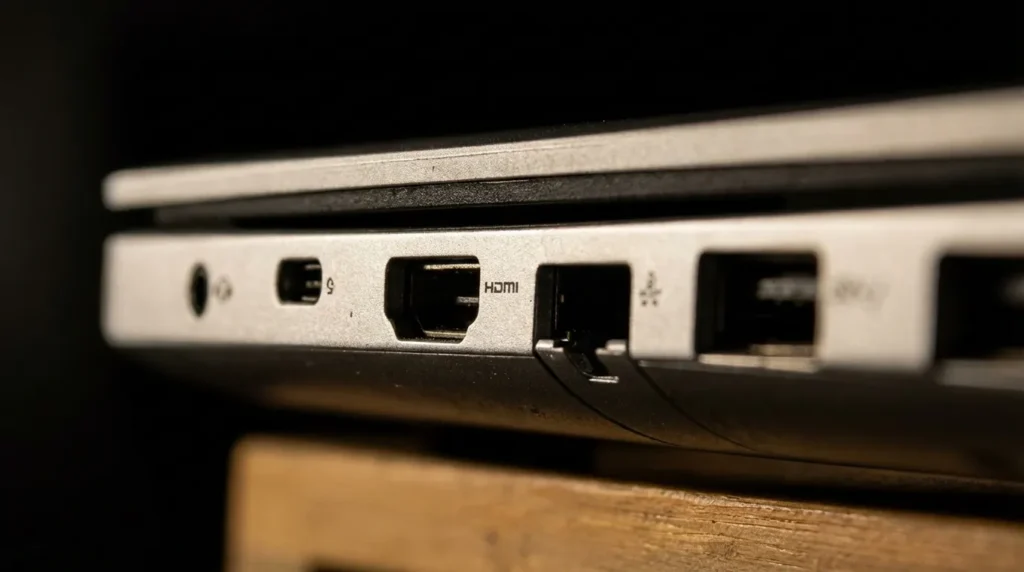
Even though a laptop is a self-contained portable PC with a display, speakers, a keyboard, and a touchpad, plus built-in Wi-Fi and Bluetooth, you still need enough ports to connect your gear.
You might want to run an AAA game on a big TV, plug in a gaming mouse and controller, or charge your phone or headphones from the laptop. Ideally, the laptop should have at least one HDMI or DisplayPort output for an external screen, plus at least three USB ports for peripherals. As for an RJ-45 Ethernet port, it’s less important these days, since modern laptops typically have Wi-Fi antennas strong enough for fast, stable connections.
Trusted brands
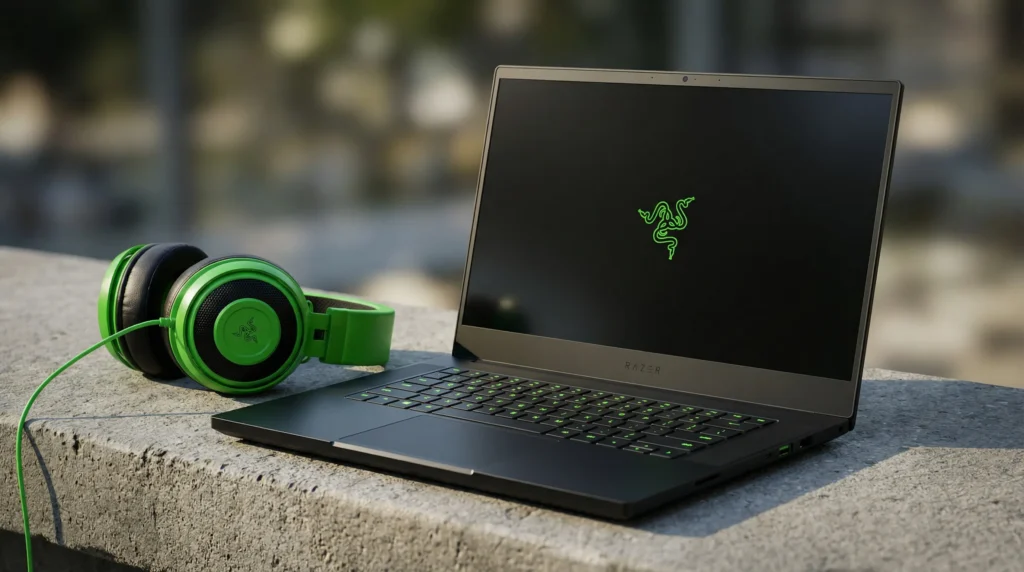
Every gaming-laptop brand has its own personality. Some focus on bold styling, some on features, and some on software. Here are a few of the most popular:
Alienware (Dell): the Alienware name covers everything from thin, lightweight gaming laptops to desktop-class machines. It’s also worth looking at Dell’s entry-level gaming models.
ASUS: the premium ROG lineup is known for flashy design and strong performance. The ROG Gaming Center app gives you easy access to stats like temperature, RAM usage, and storage, and it also lets you tune performance profiles and RGB lighting. Meanwhile, the more budget-friendly The Ultimate Force (TUF Gaming) lineup offers affordable but capable gaming laptops with excellent value.
Acer: Acer is well known for accessible models, but it also occasionally surprises people with experiments like the Predator 21X with its curved display and mechanical keyboard. The PredatorSense app lets you monitor CPU and GPU temperatures and adjust fan speeds.
HP: HP’s Omen lineup has a more stylish look while still keeping the gamer feel. The Omen Command Center app shows detailed CPU, GPU, and RAM load information, and it includes a network-boost tool that lets you prioritize bandwidth for different traffic types.
Gigabyte and Aorus: Gigabyte and its sub-brand Aorus offer a solid range. Under the Gigabyte name you’ll find simpler models in more color options, while Aorus tends to focus on thinner, more refined designs. Either way, you get the Fusion app for RGB controls, and on Aorus laptops you also get Command and Control for easier overclocking.
Lenovo: Lenovo’s gaming lineup is called Legion. It’s known for a clean, understated design that can be hard to tell apart from premium business laptops, plus excellent build quality. The screens and keyboards are especially strong. Rather than building entirely new software, Lenovo adapted its standard Vantage app, which now shows CPU, GPU, RAM, and storage usage and includes a button for boosting fan speed.
MSI: MSI gaming laptops are often large and stand out with a black-and-red color scheme, though the Stealth Thin lineup has shown the company can do more refined designs too. And you’ll almost always spot the signature dragon logo.
It’s also worth mentioning brands that used to be relatively unknown, but are now actively expanding in the Russian market as replacements for companies that paused operations. These include Infinix, Thunderobot, Machenike, Maibenben, and others. Even if some buyers are skeptical because the names are less familiar, these laptops are often no worse—and sometimes better—than models from more established manufacturers, and they can offer better value.
Conclusion
To choose the right gaming laptop, focus on a model that will stay relevant for the next few years. If you can, it’s better to buy a laptop with a mid-range or high-end graphics card, since a more powerful GPU will naturally deliver better performance.
That choice matters more than RAM and the processor, though you shouldn’t ignore them. Storage capacity and the number of drives can usually be expanded, but having more from the start is still helpful because modern games take up a lot of space. Decide whether you need higher resolution or higher speed, but keep in mind that long battery life generally isn’t realistic. And for model-specific details, check out our reviews.

I haven’t been working in the IT industry for very long, but ever since I was a kid I knew this was what I wanted to do. I started studying and tinkering with hardware when I was around 10 years old, although I had been using computers long before that , I used my first mouse at just 3 years old.
My studies focused on computer science topics, mainly cybersecurity. Over time, I discovered how much I enjoyed sharing hardware-related news and information with others.
Like many professionals in the industry, video games were one of my main motivations for getting into tech. They’re still a big part of my daily life, and I’m always keeping an eye on the latest announcements.
I’ve been working at PerfCore for a while now as a writer, and little by little I’m gaining experience in other roles as well such as doing in-depth product reviews and developing a more critical, analytical approach to hardware.