
How to Connect Xbox Controller to PC

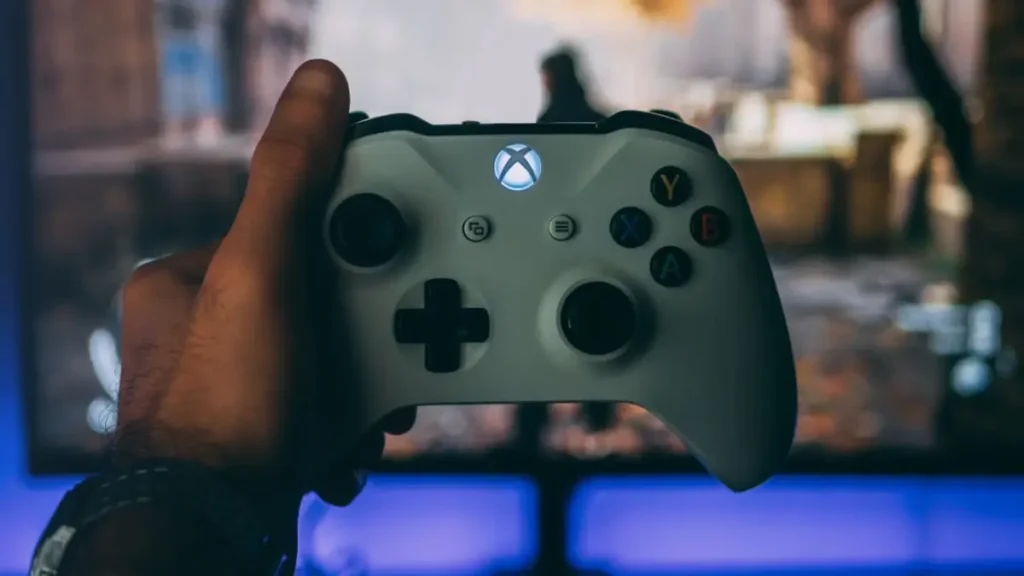
Let’s assume you have a solid gaming PC with several games installed. However racing simulators and fighting games are not very comfortable to play using a keyboard or mouse. In this case game controllers such as joysticks and console controllers can make a big difference. Some of the best controllers on the market are made by Microsoft for Xbox consoles. They also work very well with PCs running the Windows operating system.
Below are the main ways to connect Xbox controller to PC.
Contents
show
How to use an xbox series x controller on a pc via usb-c
Using a USB-C cable is the easiest way to play because it removes the risk of the battery running out during gameplay. The only downside is that you are limited by the length of the cable.
To set up the controller connect the USB-C cable to the controller and then plug the other end into a USB 3.0 port on your PC. Windows should automatically install the correct driver. If an error appears make sure you are using the latest version of Windows and check for system updates in the settings section.
Once the setup is finished the Xbox button on the controller will light up white.
How to use an xbox series x controller on a pc via bluetooth
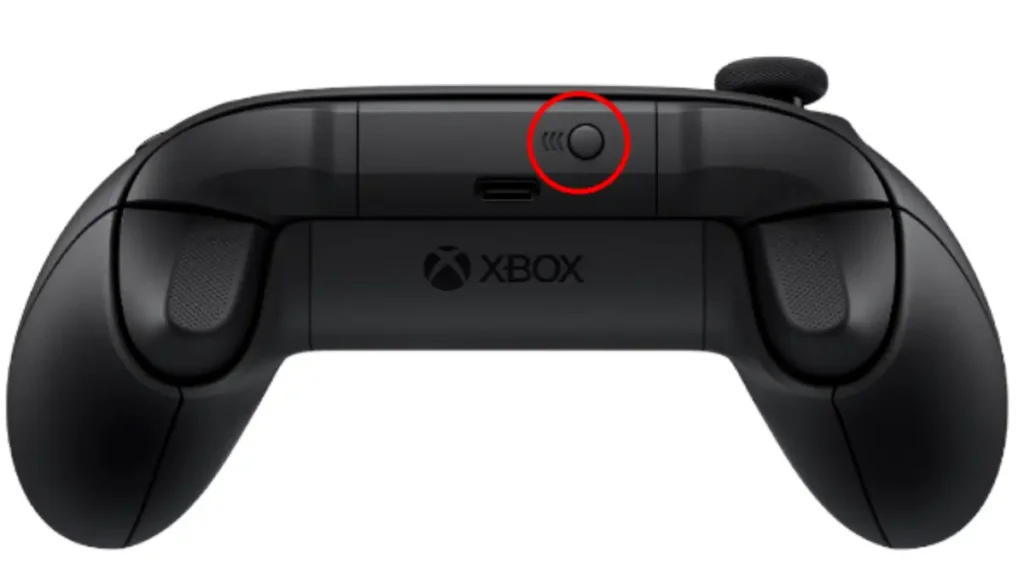
A Bluetooth connection lets you play without worrying about cables getting in the way. At the same time you will need to monitor the controller’s battery level.
Turn on the Xbox controller by holding the Xbox button. Press the Pairing button to start Bluetooth pairing. On your PC click the Start button then open Settings followed by Devices and then Bluetooth and other devices. Turn Bluetooth on select Add Bluetooth or other device and choose Xbox Wireless Controller from the list.
If your computer or motherboard does not support Bluetooth you can add this feature by using a USB Bluetooth adapter such as Techkey.
How to update an xbox series x controller on a pc
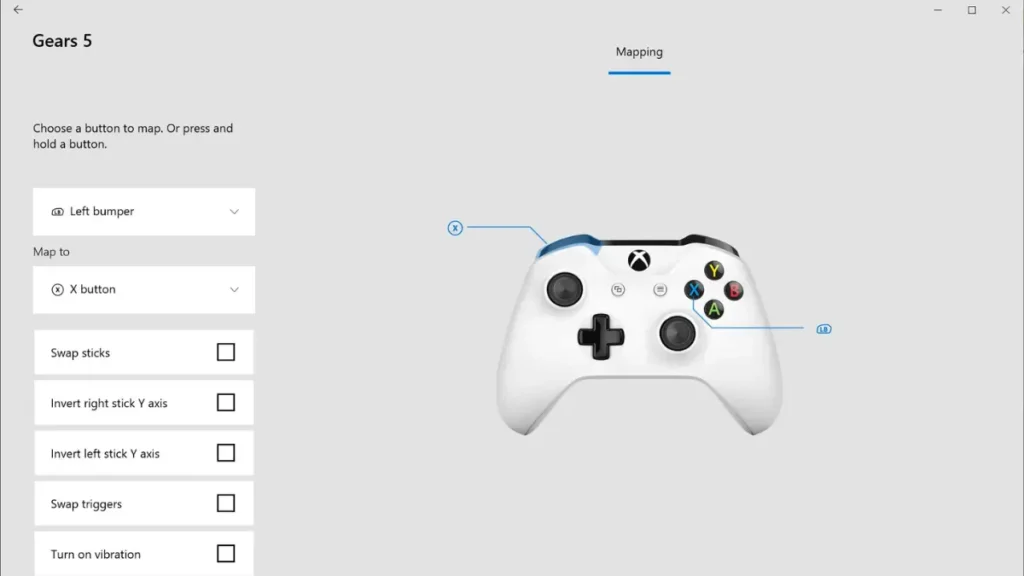
To ensure your controller always has the latest firmware and features available on PC you need to install the Xbox Accessories app. This step is optional but it helps keep your controller up to date with the newest fixes updates and functionality.
How to use an xbox series x controller in steam

In most cases an Xbox controller will work automatically with PC games once it is connected without any special setup.
If you want to make sure everything works exactly as intended enable Big Picture Mode. Open Steam and confirm that the controller is connected using USB-C or Bluetooth. Open Steam Settings then go to Controller and choose General Controller Settings.
Steam should now detect the controller and either apply the correct settings automatically or ask you to configure the Xbox Series X controller. You can remap the buttons however you prefer. After finishing the setup enable General Gamepad Configuration Support and Xbox Configuration Support and you are ready to play.

I haven’t been working in the IT industry for very long, but ever since I was a kid I knew this was what I wanted to do. I started studying and tinkering with hardware when I was around 10 years old, although I had been using computers long before that , I used my first mouse at just 3 years old.
My studies focused on computer science topics, mainly cybersecurity. Over time, I discovered how much I enjoyed sharing hardware-related news and information with others.
Like many professionals in the industry, video games were one of my main motivations for getting into tech. They’re still a big part of my daily life, and I’m always keeping an eye on the latest announcements.
I’ve been working at PerfCore for a while now as a writer, and little by little I’m gaining experience in other roles as well such as doing in-depth product reviews and developing a more critical, analytical approach to hardware.