

How to Optimize Gaming PC for Maximum FPS (2026 Guide)

I bought a mid-range gaming PC last year with solid specs on paper. When I fired up the latest games, I expected buttery smooth performance at high settings. What I got instead was stuttering, frame drops, and the nagging feeling that something wasn’t working as advertised. The irony struck me hard: modern gaming hardware ships with enough raw power to handle almost anything, yet most gamers never unlock even half of what they paid for.
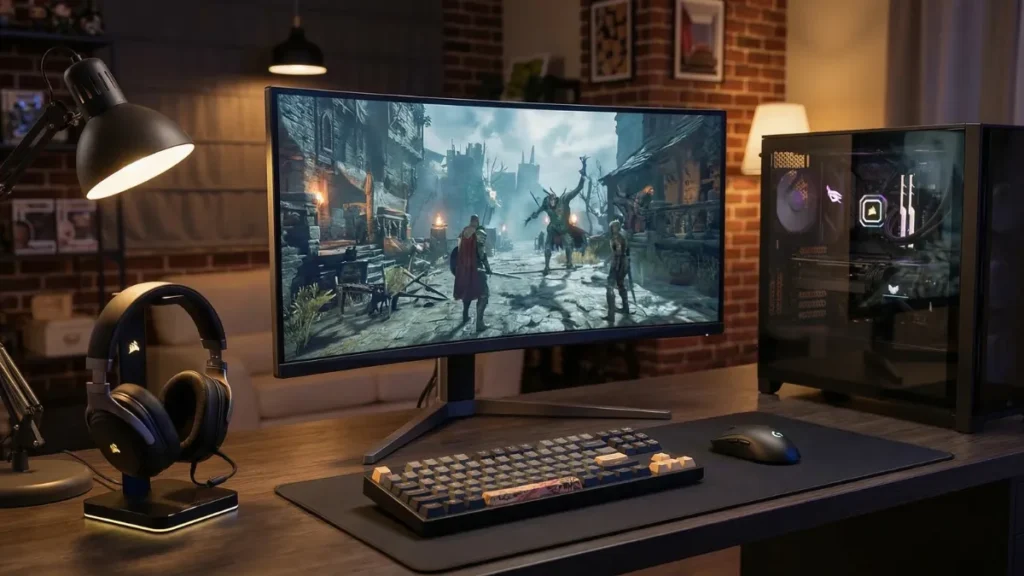
The promise of plug-and-play gaming has become one of the industry’s biggest lies. Manufacturers ship systems with default settings that prioritize stability and broad compatibility over actual performance. Background services hog resources, GPU drivers arrive bloated with unnecessary features, and operating systems treat gaming as just another workload competing for attention.
So here’s the question that matters: what does it actually take to optimize gaming pc performance in 2026 without spending another dollar on hardware?
Understanding the modern gaming PC landscape
The gaming PC market has evolved into a complex ecosystem where hardware capability and software efficiency rarely align out of the box. Your system contains multiple layers of software sitting between games and components, each introducing potential bottlenecks or conflicts.
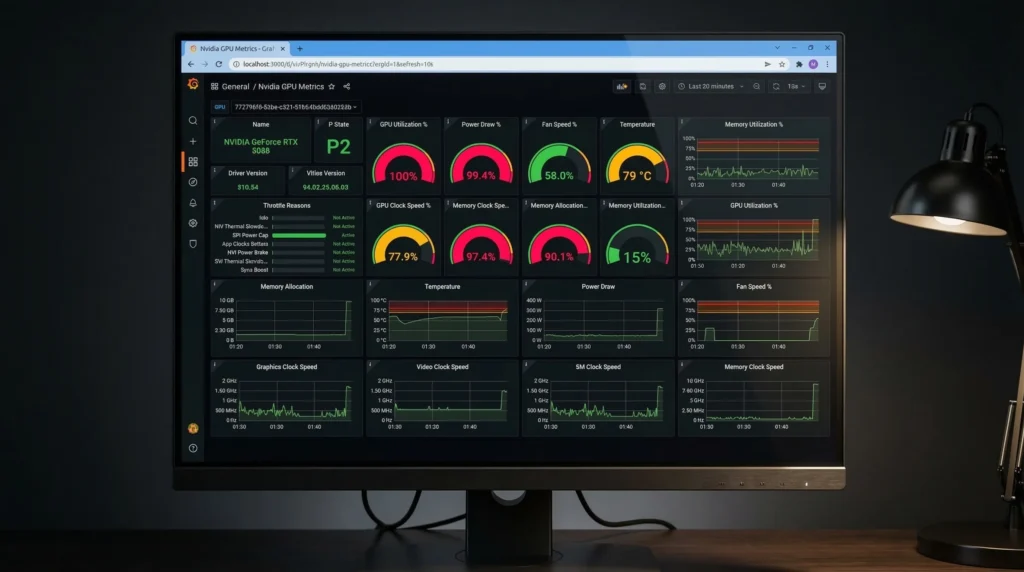
Windows itself runs dozens of background processes you never asked for. Your GPU driver package includes recording software, overlay systems, and telemetry services that consume resources whether you use them or not. Game launchers, RGB control software, and cloud sync services all compete for CPU cycles and memory bandwidth that should go to your actual games.
Meanwhile, games themselves have become more demanding without necessarily becoming better optimized. Developers target the widest possible hardware range, which means default settings often fail to leverage what high-end or even mid-range systems can deliver. The gap between minimum playable performance and maximum achievable performance has grown wider than ever.
First contact with optimization reality
When I first decided to seriously optimize gaming pc performance on my own system, I expected the process to involve complicated BIOS tweaking and risky overclocking. What surprised me was how much low-hanging fruit existed at the software level.
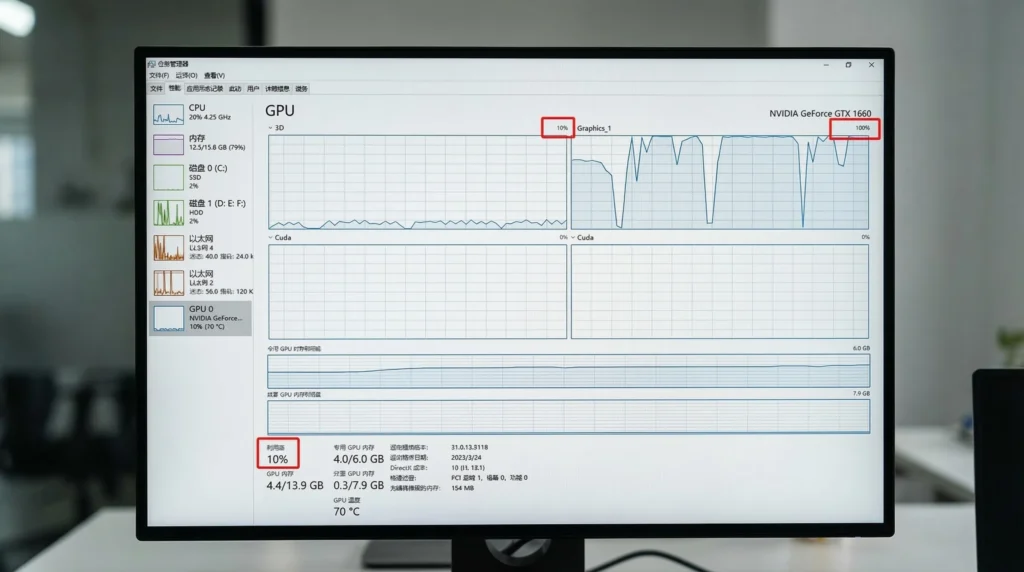
Opening Task Manager during a gaming session revealed the truth immediately. My system was running forty-seven background processes I didn’t recognize, consuming nearly 3GB of RAM and approximately 15% CPU usage before the game even loaded. Windows Update had decided to download patches in the background. Discord’s hardware acceleration was fighting my game for GPU resources. Three different game launchers sat idle but active in memory.
The emotional response shifted from frustration to determination pretty quickly. This wasn’t a hardware problem requiring expensive upgrades. This was a software configuration nightmare that could be fixed through systematic cleanup and proper settings management.
What actually works when you optimize gaming pc performance
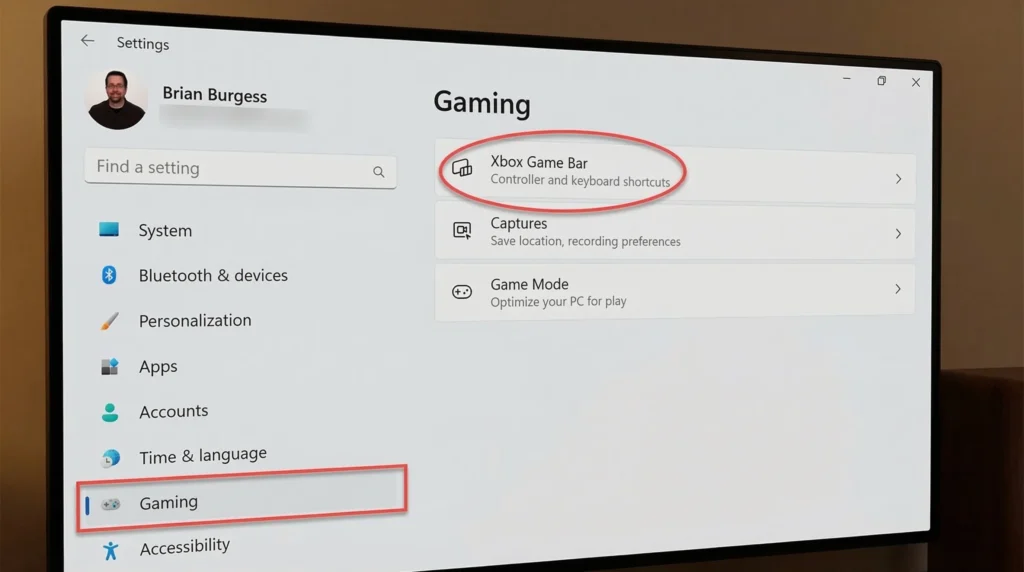
The most impactful change involves Windows power settings and background process management. Switching to the High Performance power plan prevents the CPU from throttling during gameplay, which sounds obvious but remains disabled by default on most systems. Disabling Windows Game Bar and Xbox Game DVR eliminates overlay conflicts and background recording overhead that can cost 5-10 FPS across most modern titles.
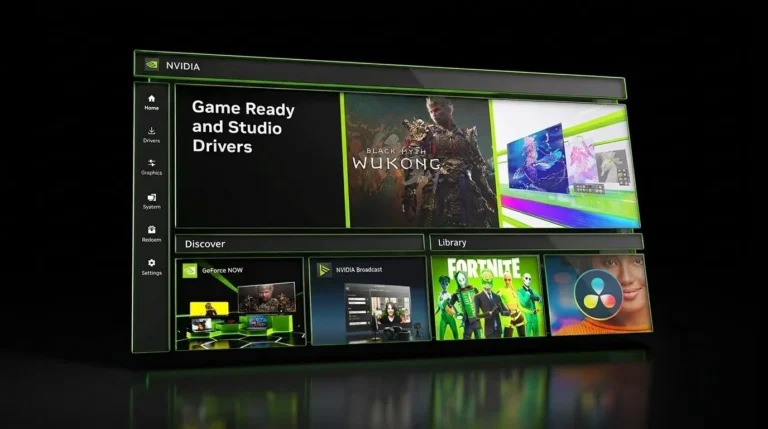
GPU driver cleanup makes an immediate difference too. Using Display Driver Uninstaller to completely remove old drivers before installing fresh ones eliminates corruption and conflicts that accumulate over time. Then installing only the core driver components without GeForce Experience or AMD Adrenalin’s full suite cuts down on unnecessary background services. I gained about 12 FPS in demanding titles just from this process alone.
Memory management optimization delivers results most people overlook. Closing unnecessary startup programs through Task Manager’s Startup tab frees up RAM for games to use. (You can also use one of the best free FPS boost tools to automate this cleanup process). Disabling Superfetch and Windows Search indexing for gaming drives reduces background disk activity that causes stuttering. Setting games to High priority in Task Manager ensures the CPU prioritizes frame rendering over system tasks.
Storage optimization matters more than people realize, especially with older SSDs or HDDs. Moving games to the fastest available drive, ensuring at least 20% free space remains on that drive, and disabling automatic defragmentation for SSDs prevents storage bottlenecks. The difference between a game loading textures from a clean, fast SSD versus a cluttered HDD can mean the difference between smooth 60 FPS and constant frame drops below 45.
Network and system service tuning completes the foundation. Disabling Windows telemetry services, Print Spooler, and other unnecessary system components frees up resources. Setting network adapter properties to prioritize gaming traffic over background downloads prevents lag spikes when other devices on your network consume bandwidth.
The friction points nobody talks about
The biggest frustration comes from Windows constantly undoing your changes. Major updates frequently reset power plans back to Balanced mode, re-enable Game Bar, and restore disabled services. You need to check and reapply core optimizations every few months, which feels like fighting your own operating system.
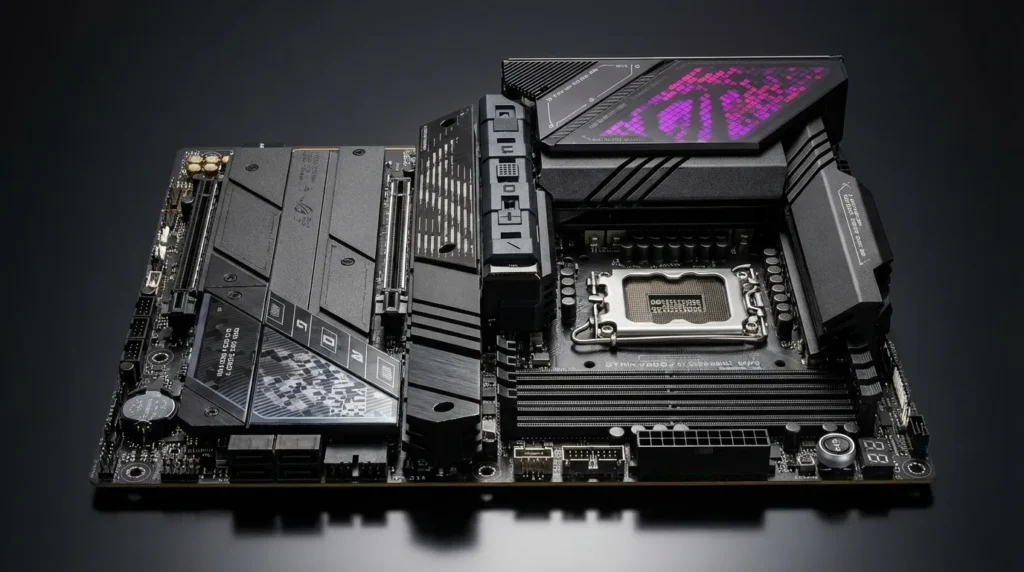
Driver optimization presents a moving target problem. What works perfectly with one driver version can introduce new issues with the next update. I’ve had GPU drivers that improved performance in some games while causing crashes in others. The safe approach involves waiting a week or two after new driver releases to see what problems emerge in the community before updating.
Some optimization guides recommend disabling security features like Windows Defender, which creates unacceptable security risks for minimal FPS gains. The performance difference between Defender running and disabled typically measures around 2-3 FPS in most games, not worth exposing your system to malware and ransomware threats.
Overclocking temptation becomes dangerous when pushed too far. While modest GPU and CPU overclocks can deliver meaningful performance gains, aggressive overclocking shortens hardware lifespan and introduces stability issues. I’ve seen systems that gained 15 FPS through overclocking but crashed randomly every few hours, making the performance increase worthless.
Real-world performance testing and expectations
Testing optimization results requires discipline to avoid confirmation bias. I used benchmarking tools and in-game performance monitors to measure actual FPS improvements rather than relying on whether games “felt” faster. The results varied significantly by game and system configuration.
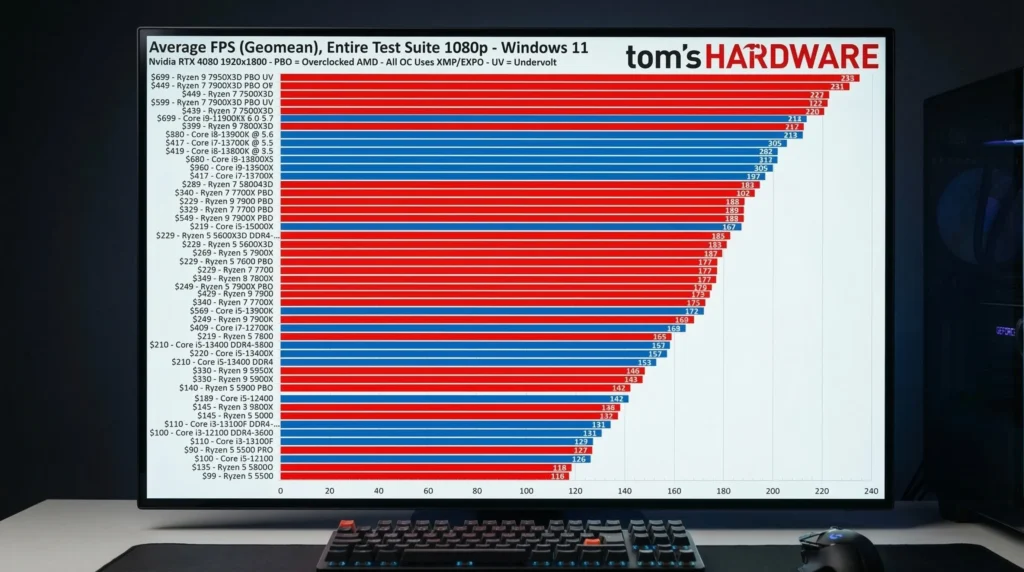
In CPU-bound games, optimizing background processes and setting proper power modes delivered 15-25% FPS improvements. GPU-bound titles showed smaller gains of about 8-12%, with most improvement coming from driver optimization and proper graphics settings rather than system tweaks.
Consistency matters more than peak performance in practical terms. A system that maintains stable 75 FPS provides better gameplay experience than one that swings between 90 FPS and 55 FPS. Optimization should target frame time consistency as much as raw FPS numbers. Understanding how graphics settings impact performance helps achieve this balance, similar to how proper configuration in demanding titles makes the difference between playable and frustrating experiences.
The gap between optimized and stock performance varies by hardware generation. Newer systems with modern CPUs and GPUs show smaller improvements because they already handle most games well. Older or mid-range systems see more dramatic gains because they struggle more with inefficient default configurations.
Who benefits most from optimization work
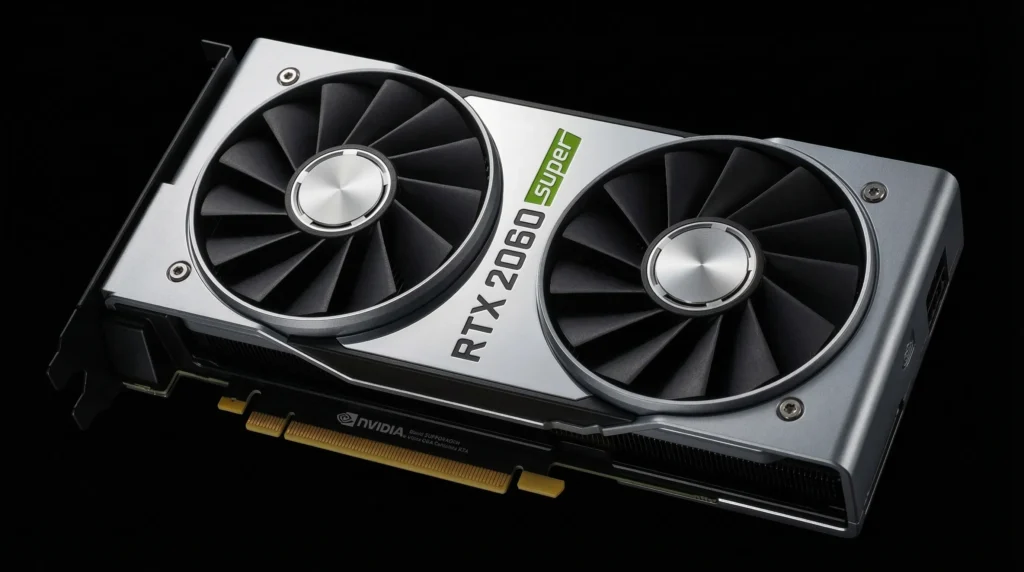
Gamers running mid-range hardware from 2-4 years ago gain the most from systematic optimization. These systems sit in the sweet spot where default settings hold them back significantly, but proper tuning unlocks substantial headroom. Someone with a GTX 1660 Super or RTX 2060 can bridge the gap toward current-gen performance through optimization alone.
Competitive multiplayer gamers who need every possible frame for reduced input lag and smoother motion should prioritize optimization regardless of hardware quality. The difference between 100 FPS and 144 FPS matters in competitive scenarios where milliseconds count. These users also benefit from latency optimization and network tuning beyond pure FPS gains.
Casual gamers with high-end hardware probably won’t notice dramatic differences. If your system already runs games at 100+ FPS on high settings, optimization provides diminishing returns. The effort investment doesn’t match the practical benefit for someone who just wants to play story-driven games at comfortable frame rates.
Users unwilling to maintain their optimizations over time should probably skip the process. If you can’t be bothered to recheck settings after Windows updates or manage background processes regularly, the temporary gains will evaporate quickly. Optimization requires ongoing attention, not just a one-time configuration.
The honest assessment on optimization value
Optimizing your gaming PC in 2026 delivers real, measurable performance improvements if you approach it systematically and maintain your changes over time. The process doesn’t require expensive hardware upgrades or dangerous overclocking to produce meaningful results. Most gamers can gain 15-30% better performance through software optimization alone.
However, optimization represents a time investment and ongoing maintenance commitment that not everyone wants or needs. The hours spent tweaking settings, testing results, and fighting Windows updates could be spent actually playing games. For some users, that trade-off doesn’t make sense.
The practical recommendation comes down to your specific situation. If you’re running mid-range hardware struggling to hit target frame rates in your favorite games, invest the time to properly optimize gaming pc performance. Start with the high-impact changes like power settings, background process cleanup, and driver optimization before moving to advanced tweaks. Track your results with benchmarks to ensure changes actually help rather than hurt performance. Then commit to checking and maintaining your optimizations quarterly to keep the benefits intact. For users with newer high-end systems already hitting performance targets, focus your time on enjoying games rather than squeezing out marginal gains.

Allen Wade is a Senior PC Hardware & Performance Analyst at PerfCore with over 8 years of experience benchmarking CPUs, GPUs, gaming laptops, and system architectures. He specializes in 1080p and 1440p frametime analysis, thermal dynamics, and budget component optimization. Allen’s hardware testing methodology relies on standardized test benches, repeatable CapFrameX frametime captures, and clean OS environments.




ywzkdmzykuqlwkvehiogrhgixruqpd