

Rise of Kingdoms on PC: how to play in 2026


Playing Rise of Kingdoms on PC changes everything. Bigger screen, mouse precision, no more draining your phone during a three-hour KvK session. A lot of serious players make the switch eventually, and once they do, they rarely go back.
The good news is that in 2026 there are multiple solid ways to get Rise of Kingdoms PC running. Which one makes the most sense depends on your setup and how you actually play.
Table of Contents
The official PC client: simplest option for Windows users

Lilith Games launched a native PC client for Rise of Kingdoms back in 2022. If you’re on Windows, this is the most straightforward path. No emulator to configure, no virtual Android environment to manage.
You download an .exe file, install it, log in, and you’re in.
Steps to get started:
- Go to the official Rise of Kingdoms website
- Click the “Play on PC” or “Windows” download button
- Run the installer
- Sign in with your Google or Facebook account to restore your progress
One bonus worth knowing: if you use this method, you can redeem the gift code PlayRoK4PC in-game for some starter rewards.
Minimum system requirements:
- Windows 10 or higher
- 8 GB RAM (16 GB recommended)
- At least 5 GB of free storage
- DirectX 11-compatible GPU
Most PCs made in the last eight to ten years handle this without any issues. The official client is well-optimized and doesn’t need a high-end machine.
The main limitation: Windows only. If you’re on a Mac, you’ll need to go the emulator route.
BlueStacks: the go-to emulator for Windows and Mac
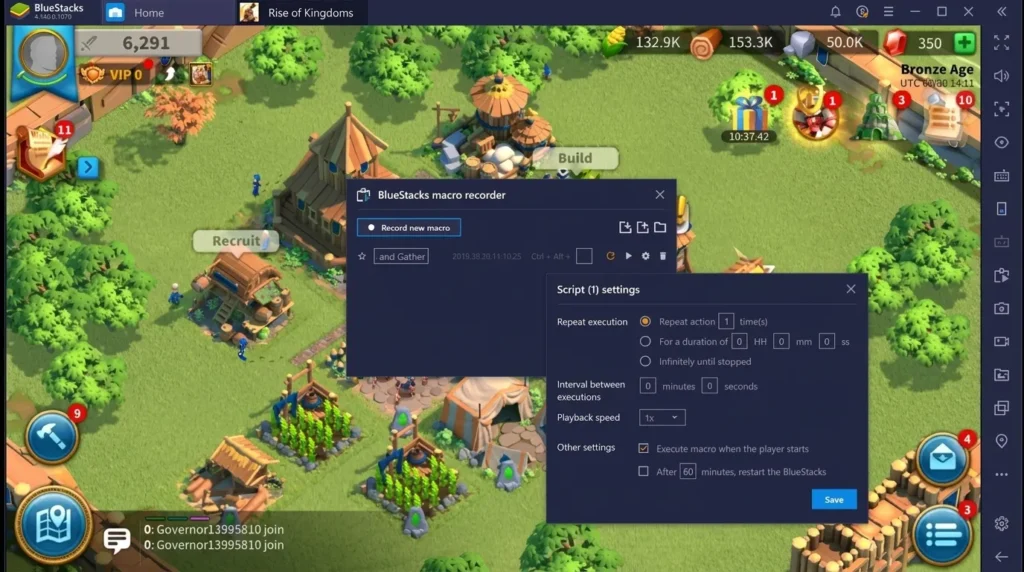
For Mac users or anyone who wants more flexibility BlueStacks is the most popular and reliable Android emulator for Rise of Kingdoms. It creates a full Android environment on your machine, letting you run mobile games as if they were native apps.
As of 2025, BlueStacks is fully compatible with Apple Silicon chips (M1, M2, M3, M4), which makes it a real option for MacBook users with recent hardware.
How to set it up:
- Download BlueStacks from its official website
- Install the app (takes about 2–3 minutes)
- Sign into your Google account inside the emulator
- Search for “Rise of Kingdoms” in the built-in Google Play Store
- Install and launch the game
If you’ve already been playing on mobile, just log in with the same Google or Facebook account. Your progress syncs automatically.
What BlueStacks adds on top of the official client:
- Macros: automate repetitive tasks like resource gathering
- Multi-instance: run several accounts at the same time, great for farm accounts
- Keymapping: fully customize your keyboard shortcuts
- Farm Mode: reduces CPU usage when the game runs in the background
That last point is where BlueStacks pulls ahead of the official client. If you’re managing multiple accounts simultaneously, there’s no real competition.
LDPlayer and other emulators worth knowing

BlueStacks is the safe bet, but it’s not the only option. LDPlayer is a serious alternative that regularly comes up in the RoK community, especially for mid-range machines. It offers the same core features multi-instance, macros, keymapping and tends to be lighter on system resources.
One thing to keep in mind with any emulator: you’ll often need to enable virtualization (VT) in your BIOS for it to run at full speed. A quick search for your motherboard model will show you exactly how to do that.
MEmu and MuMu Player also show up in community discussions. MEmu is known for its preset key configurations and wide hardware compatibility. MuMu handles lower-spec PCs particularly well and rarely crashes.
Worth avoiding: NoxPlayer. Too many players report frequent crashes and texture glitches specifically with Rise of Kingdoms. It’s not a universal issue, but the pattern is consistent enough to steer clear.
Which method to pick based on how you play
There’s no one-size-fits-all answer here. It comes down to your machine and your playstyle.
Single account, Windows machine: Use the official client. It’s the lightest, cleanest option with zero setup friction.
Playing on Mac: BlueStacks with Apple Silicon support is currently the best available path.
Managing farm accounts or multiple kingdoms: You need an emulator with multi-instance support. BlueStacks or LDPlayer are the top picks for this use case.
Older or lower-spec PC: LDPlayer or MuMu Player tend to run better on modest hardware. Worth testing both to see which feels smoother on your specific setup. If you enjoy this style of cartoon empire builder but want a different fantasy setting, check out our Infinity Kingdom PC review.
System requirements Rise of Kingdoms on PC
Whether you go with BlueStacks, LDPlayer, or MEmu, the baseline requirements are roughly the same:
- OS: Windows 7 or higher (Windows 10 recommended), macOS with M1 or newer
- RAM: 8 GB minimum, 16 GB if you plan on running multiple instances
- Storage: 5 GB of free space minimum
- CPU: virtualization enabled in BIOS (Intel VT-x or AMD-V)
- GPU: OpenGL 2.0+ compatible
Most PCs from the last decade clear these specs without a problem. If you’re unsure, BlueStacks and LDPlayer both have compatibility checkers on their official sites.
Moving your progress from mobile to PC

This is the question that stops most players from making the switch. The good news: it’s simpler than it sounds.
On your phone, go to Settings > Account > Switch Account. Link your game to a Google or Facebook account if you haven’t already. On PC, sign in with that same account, and your save appears automatically.
The sync goes both ways. You can play on PC one session and pick up on mobile the next without losing anything. Keep in mind that only one device can be active at a time per account. If you launch the game on PC while your phone is still logged in, one of them will get kicked out automatically.

Rise of Kingdoms
MMO STRATEGYGuide your own civilization to world conquest in Rise of Kingdoms! Choose from historical factions, command legendary commanders like Julius Caesar, and fight in massive, seamless real-time battles.

Allen Wade is a Senior PC Hardware & Performance Analyst at PerfCore with over 8 years of experience benchmarking CPUs, GPUs, gaming laptops, and system architectures. He specializes in 1080p and 1440p frametime analysis, thermal dynamics, and budget component optimization. Allen’s hardware testing methodology relies on standardized test benches, repeatable CapFrameX frametime captures, and clean OS environments.
This post contains affiliate links. If you make a purchase through these links, we may earn a commission at no extra cost to you.