
Star Trek Fleet Command on PC: Windows & Mac guide (2026)

If you’ve been playing Star Trek Fleet Command on PC, you already know the difference a big screen makes. And if you haven’t made the jump yet, here’s everything you need to do it in under ten minutes, whether you’re running Windows 10, Windows 11, or macOS. The game is completely free to download via the official Scopely launcher, no emulator required.
Star Trek Fleet Command
Command powerful ships, explore the galaxy, battle hostile fleets, and build your own Star Trek empire in this immersive MMO strategy experience on PC.
📅 Release Date:
November 29, 2018
STFC launched its native desktop client back in February 2023 for Windows, followed almost immediately by the Mac version in March 2023. Since then, the client has been updated in lockstep with every mobile patch. As of Update 91 (Starfleet Academy Part 2, May 2026), everything you see on phone is available on the desktop client too.
Star Trek Fleet Command review
How to download Star Trek Fleet Command on PC
There are two ways to get Star Trek Fleet Command on PC: the official native client (recommended) and Android emulators like BlueStacks or LDPlayer. The native client is hands-down the better option. It’s lighter, more stable, and directly supported by Scopely.
Windows install (step by step)
- Head to the official Star Trek Fleet Command download page.
- Click the Windows OS button. The Xsolla installer (.exe) will download automatically.
- Run the installer and follow the prompts. The launcher installs in a couple of minutes.
- Open the launcher and select Sign in with Scopely Account to load your existing progress, or just hit “Play” to start fresh and create your account later from the in-game settings.
That’s it. No Android environment to configure, no root settings to tweak. Just download, install, play.
Mac install
- On the same download page, click the Mac OS button to grab the .dmg file.
- Open the .dmg and drag the app into your Applications folder. This step is mandatory. The game will not launch correctly if installed anywhere else.
- Launch the app from Applications, sign in with your Scopely Account, and you’re set.
macOS may ask you to confirm the app is safe to open the first time. Just go to System Settings > Privacy & Security and click “Open Anyway” if prompted.
Star Trek Fleet Command on PC system requirements
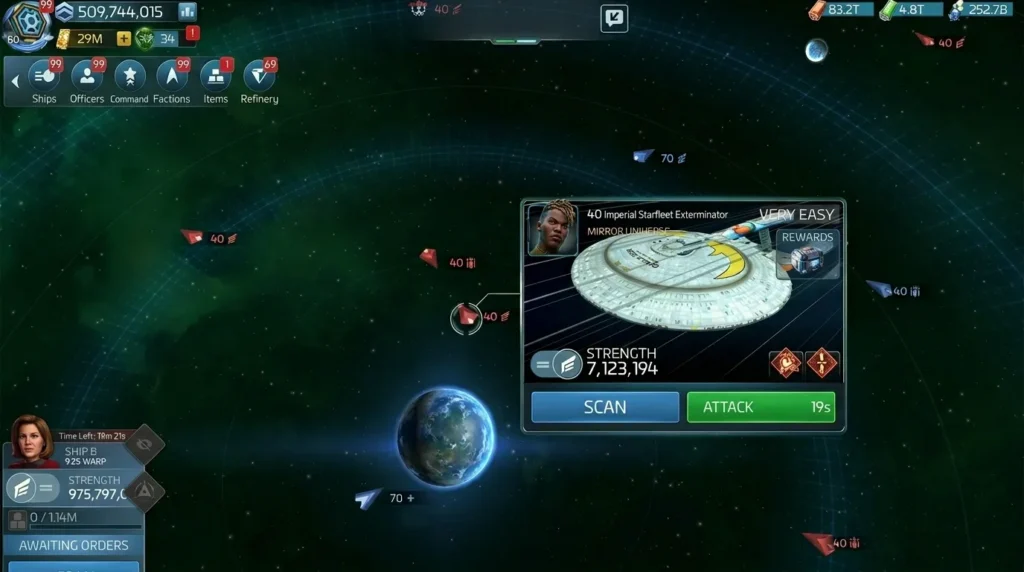
One of the nicest things about STFC on PC is how lightweight the client actually is. The game has mobile roots, which keeps the hardware bar low. Basically any laptop or desktop from the last decade should run it without a problem.
Minimum specs
- OS: Windows 10 (64-bit) or macOS 10.14 Mojave and up
- CPU: Intel Core i3-3127U or equivalent
- GPU: NVIDIA GTX 485M / AMD equivalent, with at least 2GB VRAM
- RAM: 2GB
- Storage: 5GB free disk space
- Network: Broadband internet connection (the game is always online)
Recommended specs
- CPU: Intel Core i3-3220 or better
- GPU: NVIDIA GeForce GTX 970 or equivalent
- RAM: 4GB or more
- Storage: 10GB (gives headroom for future updates)
In practice, the game runs easily on recommended specs and then some. A mid-range laptop from 2019 will handle it at maximum settings without breaking a sweat. The GTX 970 recommendation is genuinely overkill for what STFC asks of your GPU.
Cross-platform sync: your progress follows you
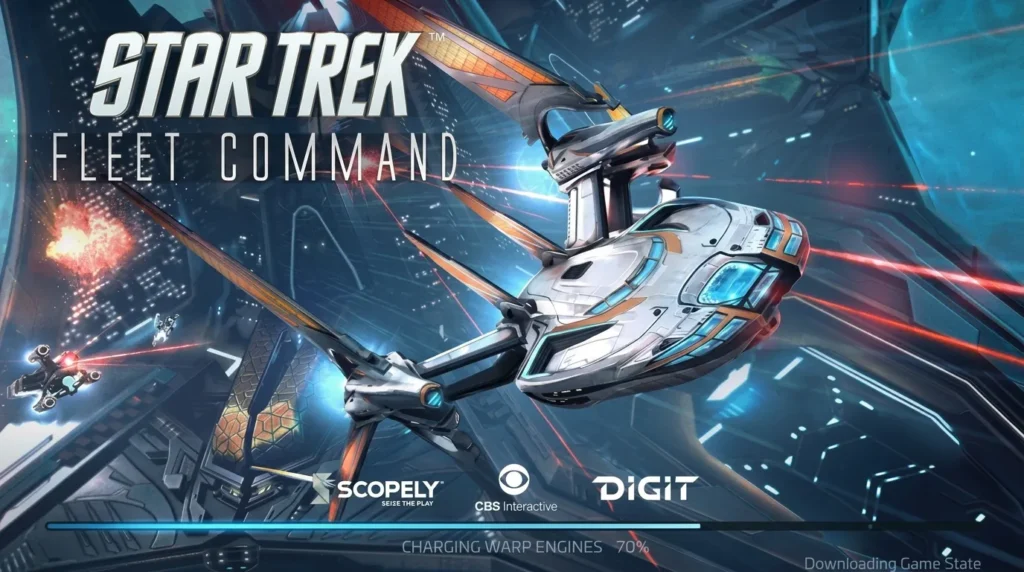
This is the part that trips up new PC players: account sync depends on your platform origin.
If you started STFC on Android, you’re in great shape. Just log into your Scopely Account on the PC client and your base, ships, officers, and resources will all be there instantly. Android and PC share the same account infrastructure.
If you started on iPhone or iPad, the situation is trickier. iOS accounts are not cross-platform compatible with the desktop client. You would need to start a brand-new game on PC and rebuild from scratch. It’s an unfortunate limitation on Apple’s side, and Scopely has not announced a fix as of 2026.
For anyone starting fresh on PC: finish the tutorial first, then immediately go to Settings > General > Save with Scopely Account. Do it before you invest real time. Once your account is saved, you can switch freely between PC (Windows or Mac) and Android.
Star Trek Fleet Command on PC: keyboard shortcuts you need to know
This is where the PC version really pulls ahead of mobile. Once you internalize these shortcuts, navigating the galaxy and managing your fleet becomes significantly faster. Here’s the full list:
General
- Opt (Mac) / Alt (Win): Toggle keyboard shortcut overlay
- Esc: Go back one screen (or exit from the main screen)
Navigation
- F1: Interior view
- F2: Exterior view
- F4: Galaxy view
- W / A / S / D or arrow keys: Scroll the viewport
- Caps Lock: Toggle galaxy label toolbar
- Enter: Open chat
Quick toolbar
- E: Ships
- R: Officers
- H: Command Center
- T: Factions
- Y: Items
- F: Refinery
Missions & goals
- X: Missions
- C: Away Teams
- V: Daily Goals
- P: Field Training
Ships
- 1 / 2 / 3…: Toggle that ship’s menu
- N: Manage active ship
- Space: Jump to active ship location on the map
Subscreens & buffs
- Shift: Alliance panel
- J: Alliance Help
- F5: Events
- B: Gifts (free chests)
- G: Research
- Z: Inbox
- Q: Offers
- U: Peace Shield
- I: Exocomps
A good habit: hit B every time you sit down to play. The free gift chest refreshes every 10 minutes, every 4 hours, and every 24 hours. It’s free resources you’re leaving on the table if you forget.
Tips for getting the most out of STFC on a big screen
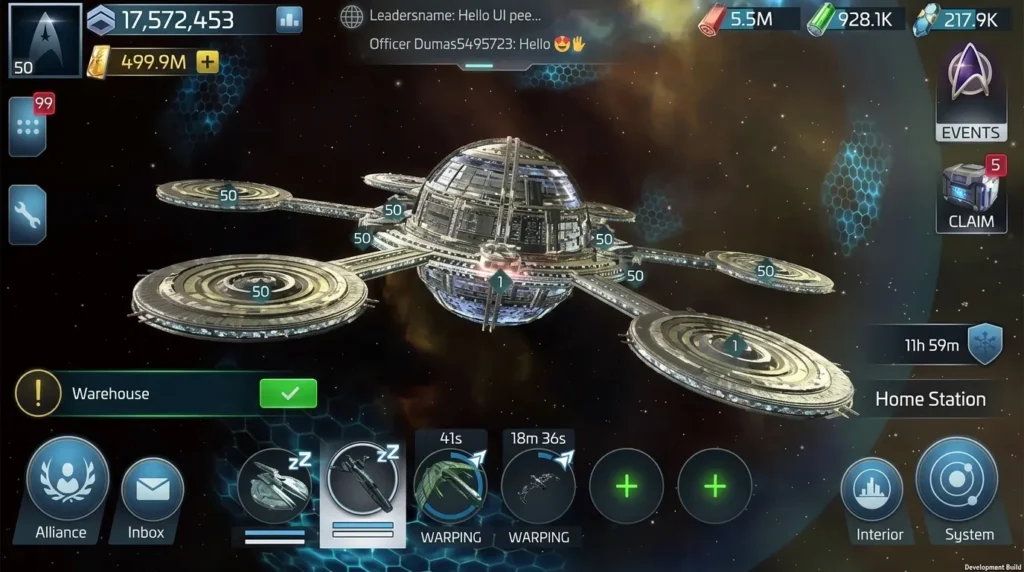
Playing Star Trek Fleet Command on PC isn’t just about comfort. The extra screen real estate genuinely changes how you interact with the game. A few things to keep in mind:
Use the mouse scroll wheel in galaxy view
Zoom in and out of star systems with the scroll wheel instead of pinching on a phone screen. It’s dramatically faster for scouting systems or plotting your next mining run. Combined with F4 for galaxy view and Space to snap back to your active ship, you can cover a lot of ground in seconds.
Monitor multiple systems at once
With a larger screen, you can keep the galaxy map visible at a useful zoom level while still reading system names and spotting player ships. On a 27-inch monitor, you’re essentially playing with a sensor range your phone just can’t match.
Multi-task during timers
Build timers and research timers are a big part of STFC. On PC, you can minimize the game, do other things, and alt-tab back when something finishes. No need to have a secondary device open just to track your queue.
Set your graphics settings
The PC client mirrors the mobile graphics options. On a capable machine, push everything to high. The game looks noticeably sharper on a full monitor, especially in combat animations and the ship viewer.
Don’t skip the free gifts
You can access the free chest menu with B and collect in two clicks. On mobile, players sometimes forget because it’s buried in menus. On PC, once the shortcut is muscle memory, you’ll never miss a chest again.
Star Trek Fleet Command
Command powerful ships, explore the galaxy, battle hostile fleets, and build your own Star Trek empire in this immersive MMO strategy experience on PC.
📅 Release Date:
November 29, 2018
If space strategy and galaxy exploration are your thing, don’t miss our roundup of the best space games of 2026.

I haven’t been working in the IT industry for very long, but ever since I was a kid I knew this was what I wanted to do. I started studying and tinkering with hardware when I was around 10 years old, although I had been using computers long before that , I used my first mouse at just 3 years old.
My studies focused on computer science topics, mainly cybersecurity. Over time, I discovered how much I enjoyed sharing hardware-related news and information with others.
Like many professionals in the industry, video games were one of my main motivations for getting into tech. They’re still a big part of my daily life, and I’m always keeping an eye on the latest announcements.
I’ve been working at PerfCore for a while now as a writer, and little by little I’m gaining experience in other roles as well such as doing in-depth product reviews and developing a more critical, analytical approach to hardware.