
Sea of Conquest PC: How to Play on Windows in 2026

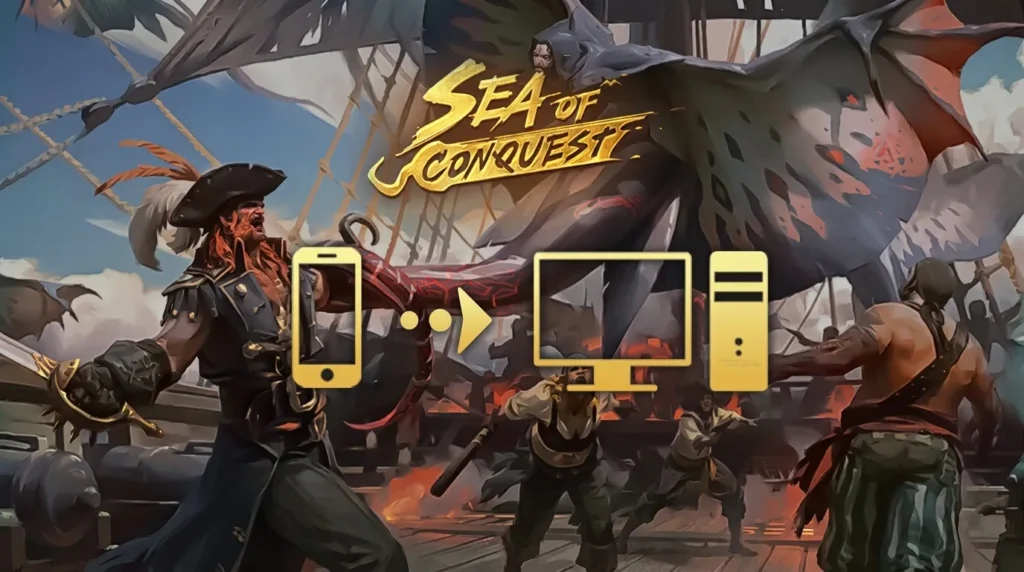
If you have been managing your fleet, raiding rival harbors, and grinding ship upgrades on a small phone screen, making the move to a Windows PC changes the experience completely. The ocean map alone is a completely different beast when you can see the whole thing at once without constantly pinching and zooming. Add proper mouse precision for fleet maneuvering and the ability to multitask without draining your phone battery, and it becomes hard to go back. In this guide, we cover exactly how to get Sea of Conquest pc : Pirate War running on Windows in 2026, along with the best emulator settings, system requirements, and performance tips to make it run smoothly.
Is Sea of Conquest officially playable on PC?
Yes. While Sea of Conquest does not have a standalone native Windows executable, FunPlus officially supports PC play through Android emulators. The game is fully compatible and runs well on Windows 10 and Windows 11. Your account progress syncs across all devices automatically.
Table of Contents
Is Sea of Conquest Officially Available on PC?
Sea of Conquest: Pirate War was built primarily for iOS and Android, but FunPlus fully supports playing on Windows through Android emulators. This is the standard, accepted method for PC play and is not a workaround or grey area. Platforms like BlueStacks even publish dedicated setup guides for the game, and many alliance leaders prefer the PC version precisely because map management is so much easier with a mouse.
You can download the game on PC through the following official channels:
- The official Sea of Conquest website links to the download alongside mobile app stores
- BlueStacks, the most popular and stable emulator for this title, with a dedicated performance profile for Sea of Conquest
Your FunPlus account carries all your ship upgrades, heroes, gold, and territory progress across mobile and PC. Many players run the PC client for intensive tasks like coordinating alliance wars, then switch to mobile for quick check-ins and collecting resources.
Official PC System Requirements for Sea of Conquest (2026)
Because you are running the game through an Android emulator rather than a native client, the requirements are driven by what BlueStacks or your emulator of choice needs. Here is what to expect in 2026:
| Hardware Component | Minimum Requirements | Recommended Requirements |
|---|---|---|
| Operating System | Windows 7 64-bit | Windows 10 / 11 64-bit |
| Processor (CPU) | 4-core Intel or AMD | Intel Core i5 (8th Gen) or better |
| Memory (RAM) | 4 GB | 8 to 16 GB Dual-Channel |
| Graphics Card (GPU) | DirectX 11 compatible | NVIDIA GTX 950 or equivalent |
| Storage Space | 10 GB available | 20 GB+ on Solid State Drive (SSD) |
| Virtualization | VT-x or AMD-V enabled | VT-x or AMD-V enabled in BIOS |
The single most common cause of poor performance on otherwise decent hardware is Virtualization Technology being disabled in the BIOS. Before anything else, check that setting. On most modern systems it is simply a matter of entering BIOS at startup and toggling it on, then saving and rebooting. The difference in emulator smoothness is immediate.
How to Download and Install Sea of Conquest on Windows
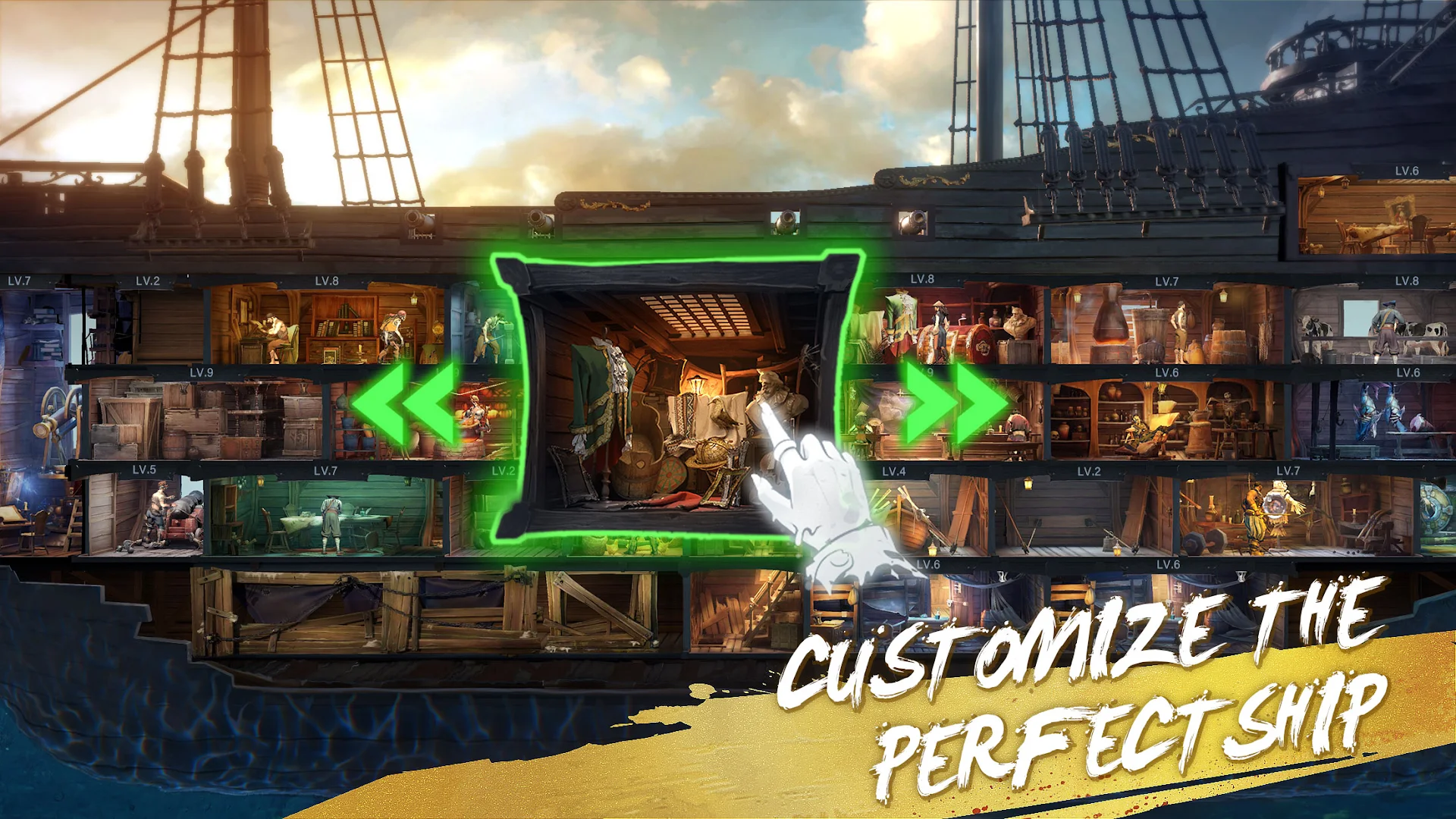
Getting everything running takes around fifteen to twenty minutes on a decent connection:
- Download and install BlueStacks for Sea of Conquest directly from the official page. Use the 64-bit Pie 64 instance version for optimal stability.
- Once BlueStacks is open, sign in with your Google account inside the emulator to access the Play Store.
- Open the Play Store within BlueStacks and search for Sea of Conquest: Pirate War.
- Click Install and wait for the download to complete. The initial download is around 1 to 2 GB.
- Launch the game, log in with your FunPlus account, and all your existing progress will sync automatically.
How to Get the Best Performance on PC

The emulator layer adds a small amount of overhead, but with the right settings Sea of Conquest runs noticeably smoother on PC than on mid-range phones. Here is what makes the biggest difference:
- Instance Type: Use the Pie 64-bit instance for Sea of Conquest specifically to prevent crash issues on older Android versions.
- System Optimization: For broader system tweaks that improve gaming responsiveness, check our comprehensive guide on how to boost FPS on PC.
PC vs Mobile: Which Is Better for Sea of Conquest?
PC wins for most of the core gameplay activities:
- Map awareness: The full ocean map is displayed at once on a desktop monitor. You can track multiple fleets, enemy movements, and resource nodes simultaneously without constant zooming.
- Alliance coordination: Responding to chat messages, managing alliance commands, and planning coordinated strikes is dramatically faster with a real keyboard.
- Zero battery drain: Running Sea of Conquest for hours during long fleet wars causes zero thermal throttling or battery degradation on desktop.
Does Sea of Conquest Run on Low-End Hardware?
Yes, reasonably well. Sea of Conquest is not graphically demanding. The main resource consumer is the emulator itself. On hardware like a quad-core i5 with 8 GB of RAM and a GTX 950, the game runs at a stable 30 to 60 FPS inside BlueStacks with medium graphics settings.
If you are working with older hardware and want more free-to-play titles in a similar space that run smoothly on mid-range setups, our curated list of the best PC games in 2026 is a great starting point.
Frequently Asked Questions
Is Sea of Conquest free to play on PC?
Yes. The game is free to download on any Android emulator. All gameplay content and story quests are accessible without paying.
Can I use my existing mobile account on PC?
Yes. Log in with your FunPlus account, Google account, or Apple ID and your entire fleet, hero roster, and territory sync instantly.
Do I need BlueStacks specifically, or are other emulators fine?
BlueStacks is the most tested emulator for Sea of Conquest with dedicated performance profiles. LDPlayer and MuMu Player also work well.
Why is Virtualization Technology important?
Emulators rely on hardware virtualization to run Android apps efficiently on Windows. Without it enabled in your BIOS, emulators run through software emulation, causing stuttering even on high-end hardware.
Conclusion
Sea of Conquest: Pirate War is a genuinely enjoyable pirate strategy game that becomes a significantly better experience on a Windows PC. The broader map view, keyboard controls, and emulator-level performance options give you a meaningful edge in fleet coordination and alliance play

Sara Jakob is the Senior Gaming Software & Systems Editor at PerfCore, specializing in PC game optimization, browser performance benchmarks, and free-to-play MMO mechanics. With a background in computer science and software testing, Sara leads PerfCore’s game setting optimization guides and software utility reviews.