Best Onimusha: Way of the Sword PC Settings for High FPS

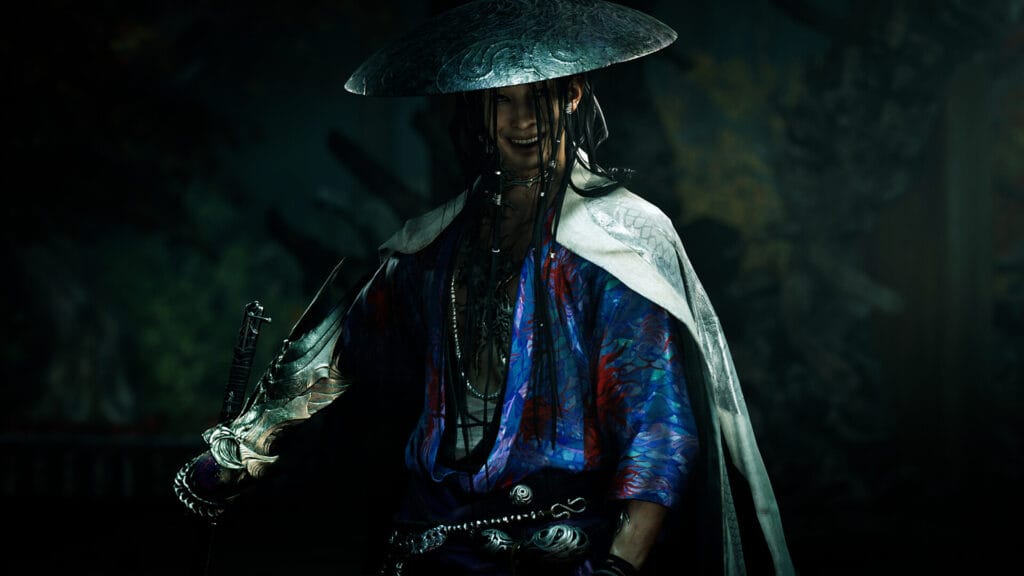
Capcom’s RE Engine is one of the most PC-friendly game engines out there. Resident Evil Village, Devil May Cry 5, and Dragon’s Dogma 2 all ran on it, and Way of the Sword follows the same tradition of solid technical groundwork with a PC port that lets you genuinely tune your experience. The challenge is that RE Engine games still have a fairly wide spread between a good and a bad configuration on the same hardware, and Onimusha: Way of the Sword is no exception. In this guide, we break down the best Onimusha: Way of the Sword PC settings so you can lock in a smooth 60 or 120 FPS across every major GPU tier in 2026.
Table of Contents
Why RE Engine Needs Specific Tuning on PC
RE Engine is not a brute-force engine. It does not scale linearly the way older game engines do, where cutting every setting in half doubles your frame rate. Instead, a handful of specific features carry the vast majority of the GPU load in this game, while other settings that look expensive in the menu have almost no measurable impact on performance.
Knowing which settings are actually expensive and which are cosmetic is the entire key to optimization here. Spend ten minutes in the benchmark tool that Capcom included in the game launcher, run a test at your current settings, then follow this guide to find out what to change. For a full breakdown of the game mechanics, story, and verdict, read our comprehensive Onimusha: Way of the Sword PC review.
Setting-by-Setting Impact: What to Change First
Here is the full picture of what each major graphics option actually costs you, ordered from most to least impactful on overall frame rate:
1. Ray Tracing (Very High Impact)
Ray Tracing in this game adds reflective water surfaces in shrine areas and accurate ambient occlusion inside temple corridors. It looks genuinely good, but it costs an enormous amount of GPU performance, particularly on cards without dedicated RT hardware.
On cards with RT cores (RTX 2060 and above), setting Ray Tracing to Medium rather than High recovers around 12 to 18 FPS at 1080p with no perceptible visual degradation during combat. On cards without RT hardware (GTX 1660, RX 5500 XT), disable Ray Tracing completely. The game’s standard rasterized ambient occlusion is clean and convincing on its own.
2. Volumetric Fog (Very High Impact)
This is the single most demanding graphics setting in the game, and the one most players overlook. Volumetric Fog is calculated per voxel in three-dimensional screen space, which means it scales with both resolution and scene lighting complexity. The river districts of Kyoto in Act 2 hammer this setting heavily.
Dropping Volumetric Fog from High to Medium recovers up to 28% of your frame budget in those sections. Dropping it from Medium to Low gives you another 8 to 10% uplift. At 1080p and 1440p, the visual difference between High and Medium is barely noticeable in motion, making this an automatic drop for anyone below an RTX 3070.
3. Shadow Quality (High Impact)
Shadow quality controls the resolution of shadow maps cast by geometry and individual Genma enemies. At High it looks crisp. At Medium the shadows are slightly softer on distant objects but completely stable during fast combat. Dropping from High to Medium yields an immediate 10 to 15 FPS gain at 1080p.
4. Texture Quality (Low Impact on FPS, High Impact on Visuals)
Textures are loaded into VRAM and do not carry a heavy real-time compute cost once resident in memory. The key factor is VRAM capacity. If your GPU has 6 GB of VRAM or more, keep textures on High. Only drop to Medium on 4 GB cards to avoid VRAM overflow stutters.
5. Foliage Quality and Cull Distance (Medium Impact)
Foliage quality affects vegetation density and LOD draw distance in open areas between Kyoto districts. High foliage can cause CPU draw-call spikes during dense outdoor segments. Dropping to Medium smooths out micro-stuttering on mid-range CPUs without making the world feel barren.
Recommended Settings by GPU Tier
Use these tested presets as a baseline for your hardware:
Budget Tier: GTX 1660 6GB / RX 5500 XT 8GB (1080p / 30-45 FPS Target)
| Setting | Recommended Value |
|---|---|
| Upscaling | FSR 3.1 Quality (Sharpness 60) |
| Ray Tracing | Off |
| Volumetric Fog | Low |
| Shadow Quality | Medium |
| Texture Quality | High (6 GB VRAM) |
| Foliage Quality | Medium |
| Mesh Quality | Medium |
| Frame Limiter | Cap at 30 or 45 FPS |
| Display Mode | Borderless Windowed |
Mainstream Tier: RTX 2060 Super 8GB / RX 6600 8GB (1080p / 60 FPS Locked)
| Setting | Recommended Value |
|---|---|
| Upscaling | DLSS 4.5 Quality (RTX) / FSR 3.1 Quality (AMD) |
| Ray Tracing | Medium (or Off for 75+ FPS headroom) |
| Volumetric Fog | Medium |
| Shadow Quality | Medium |
| Texture Quality | High |
| Foliage Quality | High |
| Mesh Quality | High |
| Frame Limiter | Cap at 60 FPS |
| Display Mode | Borderless Windowed |
High-End Tier: RTX 3070 8GB / RX 6700 XT (1440p / 60 FPS Target)
| Setting | Recommended Value |
|---|---|
| Upscaling | DLSS 4.5 Quality |
| Ray Tracing | High |
| Volumetric Fog | High |
| Shadow Quality | High |
| Texture Quality | High |
| Foliage Quality | High |
| Mesh Quality | High |
| Frame Limiter | Cap at 60 or 75 FPS |
| Display Mode | Exclusive Fullscreen |
Enthusiast Tier: RTX 4070 12GB / RX 7800 XT (1440p / 120 FPS Target)
| Setting | Recommended Value |
|---|---|
| Upscaling | DLSS 4.5 Quality + Frame Generation |
| Ray Tracing | High |
| Volumetric Fog | High |
| Shadow Quality | High |
| Texture Quality | High |
| Foliage Quality | High |
| Mesh Quality | High |
| Frame Limiter | Uncapped (or display refresh rate cap) |
| Display Mode | Exclusive Fullscreen |
DLSS 4.5 vs FSR 3.1: Which Should You Use?
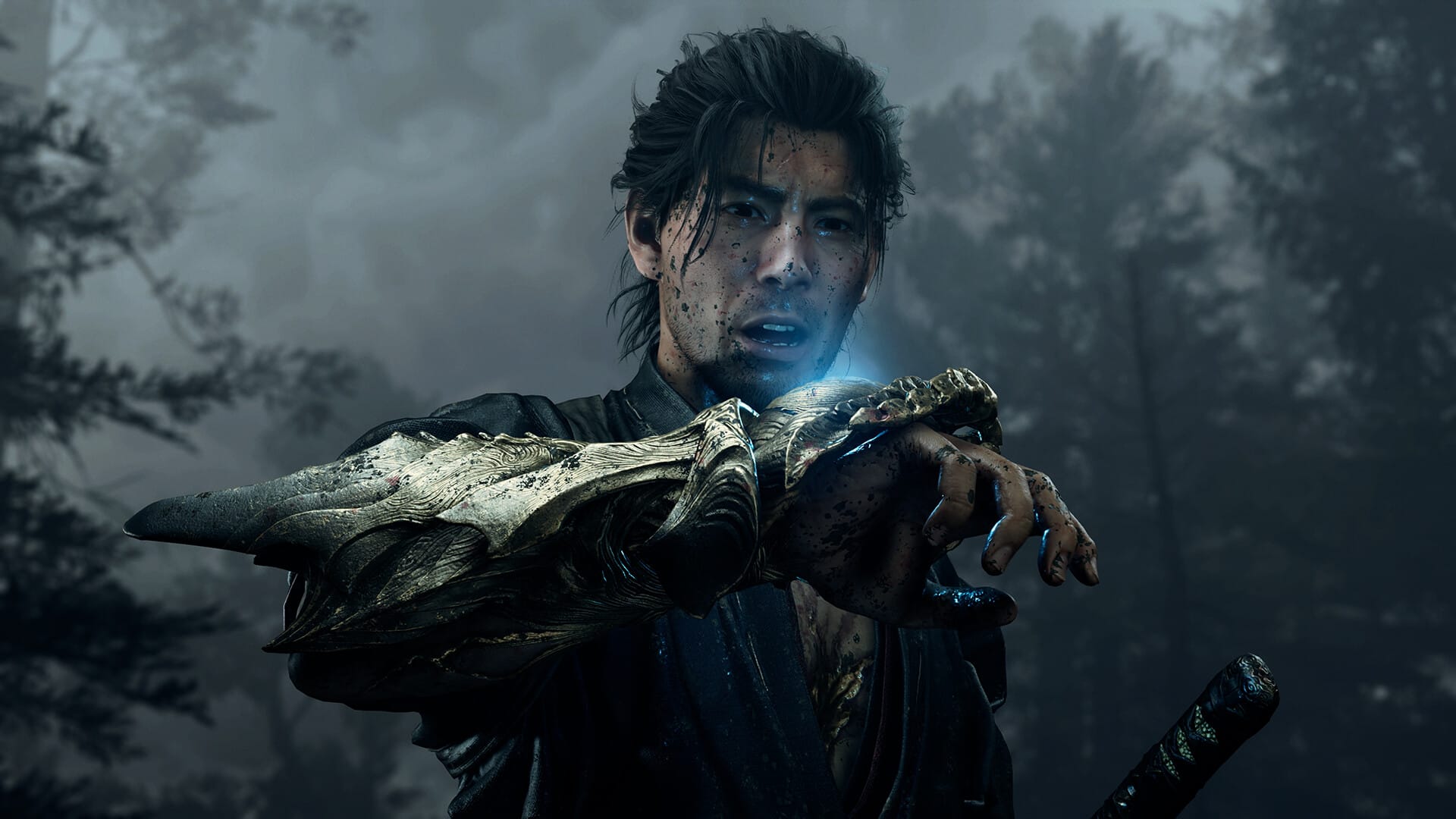
If you have an RTX card (20-series or newer), use DLSS. DLSS 4.5 in this title produces a visibly sharper output than FSR 3.1 at equivalent internal render resolutions, and its Frame Generation implementation carries less input latency penalty. In addition, fine geometry like Musashi’s Oni Gauntlet chains remains stable without temporal ghosting.
FSR 3.1 is the best choice on AMD cards. At Quality mode, FSR 3.1 delivers sharp image reconstruction. If the image looks slightly soft, set the in-game Sharpness slider between 55 and 65 to restore edge definition.
Fixing Stuttering: The Frame Cap Fix
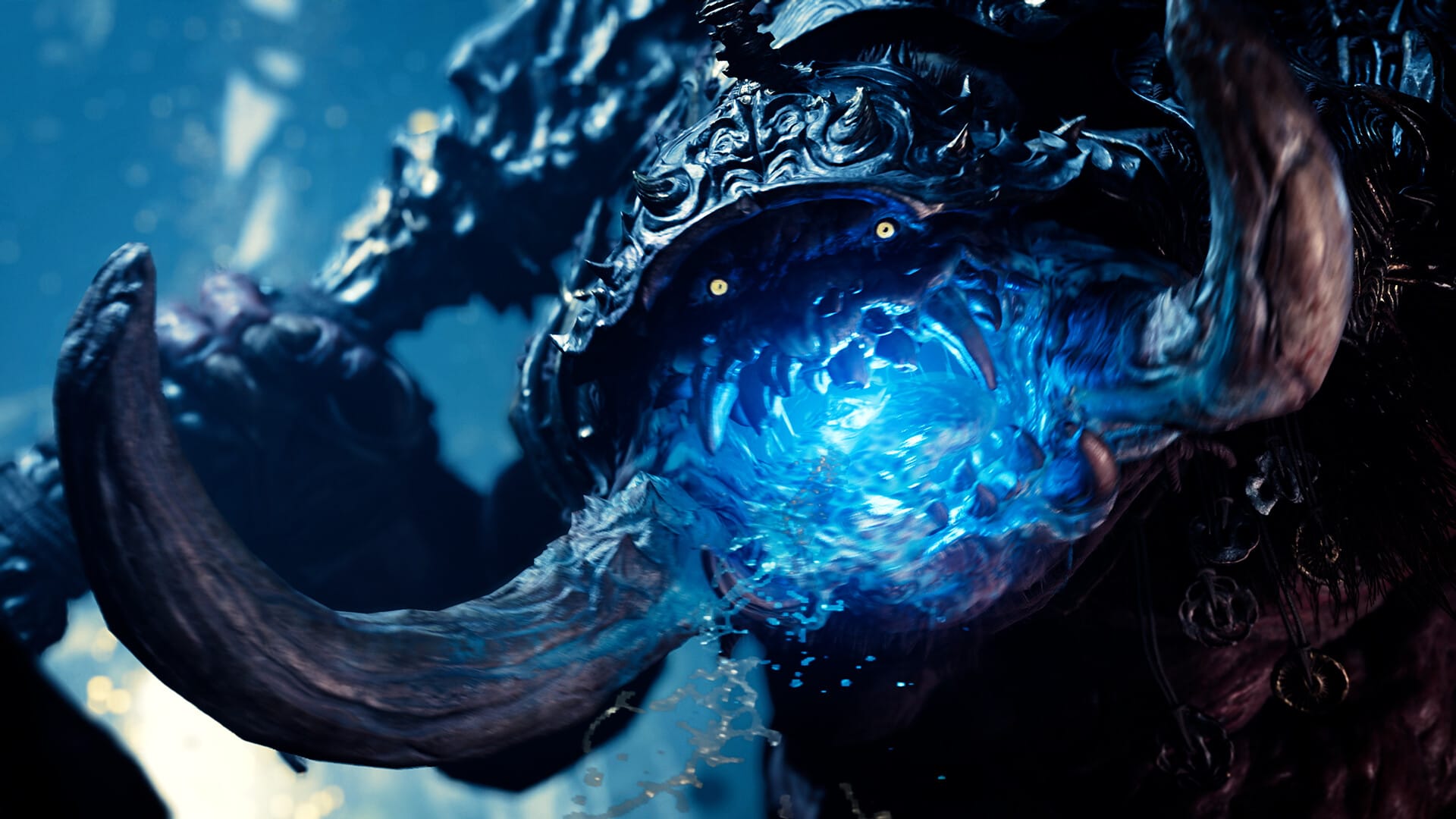
The most common performance issue reported by players is inconsistent frame pacing in open Kyoto areas. Running an uncapped frame rate causes RE Engine’s background asset streaming to fight for CPU resources. Setting a hard frame rate cap at 60 FPS (or your display’s refresh rate) eliminates these frame spikes completely.
For driver-level frame limiting and maximum consistency across RE Engine titles, our guide on best NVIDIA Control Panel settings for maximum FPS walks through the exact Low Latency Mode and Max Frame Rate settings to apply.
Frequently Asked Questions
Does Onimusha: Way of the Sword support 120 FPS on PC?
Yes. The PC version features an uncapped framerate option. On an RTX 4070 or RX 7800 XT with DLSS/FSR Quality, holding 120 FPS at 1440p is easily achievable.
Why is my game stuttering during the first hour of play?
This is normal shader compilation behavior. RE Engine compiles shaders during your initial playthrough of each district. Once the shader cache builds up, stutters drop off substantially on subsequent runs.
Is an SSD strictly required for Onimusha: Way of the Sword?
Yes. The game uses aggressive direct-to-memory asset streaming for combat arenas. Running the game on a mechanical HDD causes severe hitching and delayed audio cues.
Should I use Exclusive Fullscreen or Borderless Windowed?
Exclusive Fullscreen provides slightly lower display latency and tighter frame pacing. Borderless Windowed is convenient for multi-monitor setups and performs well at standard 60 FPS targets.
Verdict: Optimize These Four Settings
You do not need to drop every visual slider to achieve smooth performance in Onimusha: Way of the Sword. Focus on the core four: enable upscaling on Quality mode, dial back Volumetric Fog, keep Ray Tracing at Medium or Off, and lock in a frame rate cap. These adjustments give you the best balance of visual clarity and combat responsiveness.
For a complete breakdown of Musashi’s story, combat mechanics, and full platform comparisons, make sure to read our complete Onimusha: Way of the Sword PC review.

Allen Wade is a Senior PC Hardware & Performance Analyst at PerfCore with over 8 years of experience benchmarking CPUs, GPUs, gaming laptops, and system architectures. He specializes in 1080p and 1440p frametime analysis, thermal dynamics, and budget component optimization. Allen’s hardware testing methodology relies on standardized test benches, repeatable CapFrameX frametime captures, and clean OS environments.