
How to Reduce Input Lag in Windows 11 (2026 Competitive Guide)
10 proven tweaks to reduce input lag in Windows 11: HAGS, power plans, raw input, mouse polling rate, V-Sync, and more — step-by-step competitive gaming guide.

In competitive gaming, the gap between winning and losing often lives in milliseconds. Human reaction time starts degrading around 7–10ms of perceived input lag and most unoptimized Windows 11 setups add 20–40ms without players ever realizing it. The good news: you don’t need expensive new hardware to fix this. The majority of input lag in 2026 comes from wrong OS settings, bad power configurations, and GPU driver defaults that prioritize stability over speed. Welcome to our guide on how to reduce input lag in Windows 11 for competitive gaming.
Key Takeaways:
• V-Sync Off & Frame Cap: Disabling V-Sync and applying a frame cap below refresh rate cuts 10–20ms of buffer lag.
• HAGS Enabled: Hardware-Accelerated GPU Scheduling reduces render pipeline handoff delays.
• Ultimate Power Plan: Prevents CPU downclocking, eliminating 3–8ms of stutter latency.
• High Polling Rate: 1000Hz+ mouse polling rate reduces report spacing to sub-millisecond precision.
• Windows 11 Low Latency Profile: Keep Windows 11 updated to leverage August 2026 low-latency OS scheduling.
Table of Contents
Why Does Windows 11 Introduce Input Lag?
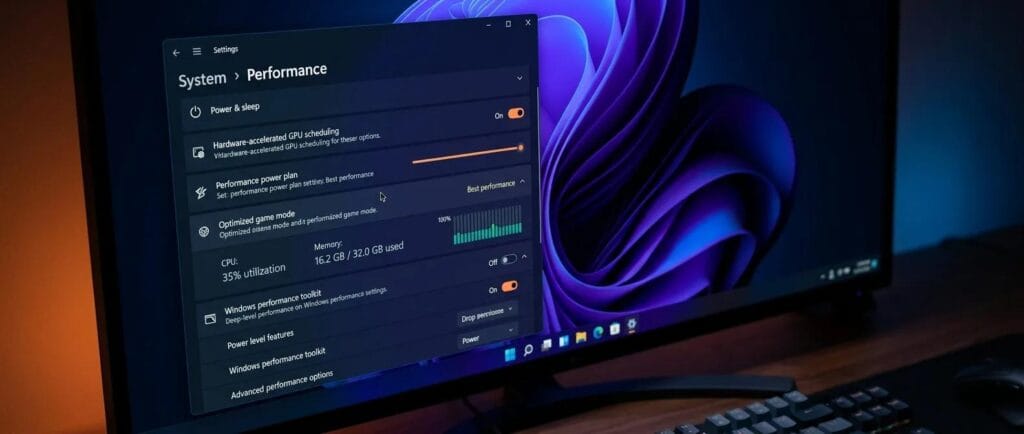
Windows 11 balances battery efficiency, background tasks, and visual effects by default. Each of these priorities adds latency to the input pipeline. The chain from physical click to onscreen response involves your input device polling rate, OS process scheduling, GPU render frame queues, and display refresh cycles.
1. Enable Hardware-Accelerated GPU Scheduling (HAGS)
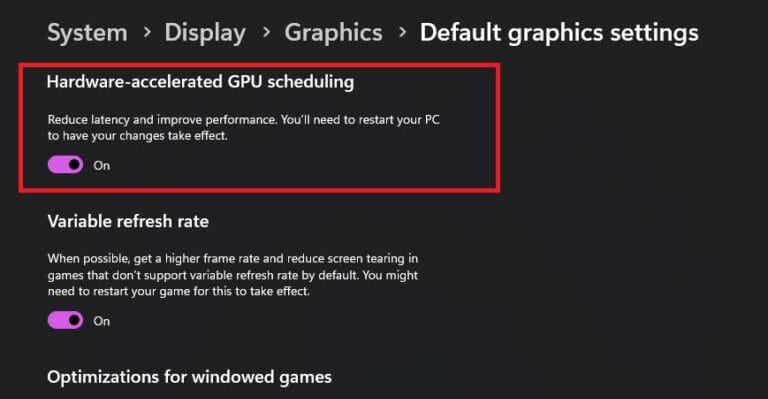
HAGS delegates GPU memory management from the CPU directly to the graphics processor, streamlining frame handoffs:
- Open Settings → System → Display → Graphics.
- Click Change default graphics settings.
- Toggle Hardware-Accelerated GPU Scheduling to On.
- Enable Optimizations for windowed games right below it, then reboot your PC.
2. Set Power Plan to High or Ultimate Performance
The default Balanced power plan drops CPU clock speeds during low activity, adding micro-delays when sudden combat starts. Switch to High Performance or Ultimate Performance in Control Panel → Power Options. According to Microsoft’s Game Latency Documentation, unthrottled CPU states eliminate 3–8ms of micro-stutter latency in fast-paced games.
3. Disable V-Sync & Apply a FPS Cap
V-Sync forces 1–3 pre-rendered buffer frames into the pipeline, adding 16–50ms of latency at 60Hz. Turn V-Sync Off globally and cap your frame rate 3 FPS below your monitor’s maximum refresh rate (e.g., 237 FPS on a 240Hz monitor). In fast-paced extraction shooters like Arena Breakout: Infinite, turning V-Sync off produces immediate crosshair responsiveness in intense 1v1 gunfights.
4. Configure Mouse Acceleration & Polling Rate
To establish 1:1 muscle memory and minimize input delay:
- Go to Settings → Bluetooth & Devices → Mouse → Additional mouse settings → Pointer Options and uncheck Enhance pointer precision.
- Ensure your mouse software is set to 1000Hz polling rate or higher (reducing report spacing from 8ms down to 1ms).
- Always enable Raw Input inside game settings to bypass Windows cursor processing.
5. Disable Windows 11 Widgets and Background Services
Windows 11 introduces active desktop features like Widgets (news feeds) and background telemetry that wake CPU threads during gameplay, introducing erratic input lag spikes. To minimize background interruptions:
- Right-click the Taskbar and select Taskbar settings.
- Toggle Widgets to Off to prevent WebView2 background memory leaks.
- Go to Settings → Apps → Installed apps and uninstall or disable background permissions for unneeded preinstalled apps.
6. Bluetooth and Wireless Peripheral Optimization
If you play competitive games on wireless or Bluetooth gear, signal interference can increase latency from 1ms up to 25ms+:
- Avoid standard Bluetooth for competitive gaming; always connect via dedicated 2.4GHz low-latency USB dongles.
- Plug your wireless dongle into a USB 2.0 port or use the included extension cable placed within 20cm of your mousepad to prevent USB 3.0 frequency interference.
- Keep peripheral firmware up to date through your manufacturer’s companion software (e.g., Razer Synapse, Logitech G HUB).
Windows 11 Input Lag Reduction Checklist
| Tweak | Estimated Latency Reduction | Location |
|---|---|---|
| Disable V-Sync + Frame Cap | 10–20 ms | In-game & GPU Control Panel |
| Enable HAGS | 3–10 ms | Settings → System → Display → Graphics |
| Ultimate Performance Power Plan | 3–8 ms | Control Panel → Power Options |
| 1000Hz Mouse Polling Rate | 1–7 ms | Mouse Manufacturer Software |
| Disable Enhance Pointer Precision | Consistency Gain | Mouse → Additional Settings |
| Enable In-Game Raw Input | Direct Driver Path | In-Game Audio/Controls Menu |
For additional deep-dive display latency research, Blur Busters remains the premier authority on monitor motion blur and panel latency benchmarking. Once your system latency is optimized, explore our curated list of the best PC games in 2026 to put your tuned rig to the test.
Frequently Asked Questions
Does Windows 11 have more input lag than Windows 10?
No. Following performance updates in 2025 and 2026, Windows 11 performs identically or better than Windows 10 in gaming latency when properly tuned.
Is Game Mode safe to leave enabled in Windows 11?
Yes. Windows 11 Game Mode prioritizes your active game thread and prevents background Windows Update installs during gaming sessions.
Looking for verified OS performance data? Check out our benchmarks in Windows 11 Finally Beats Windows 10 in Gaming Performance.

Sara Jakob is the Senior Gaming Software & Systems Editor at PerfCore, specializing in PC game optimization, browser performance benchmarks, and free-to-play MMO mechanics. With a background in computer science and software testing, Sara leads PerfCore’s game setting optimization guides and software utility reviews.