Best Delta Force PC Settings for High FPS (2026 Competitive Guide)

Delta Force is built on a modern engine that rewards smart configuration over raw hardware. You do not need an extreme enthusiast workstation to run this game at competitive frame rates. What you need is to understand which graphics options carry the real GPU processing cost and which ones look heavy in the menu but barely affect your performance during actual matches.
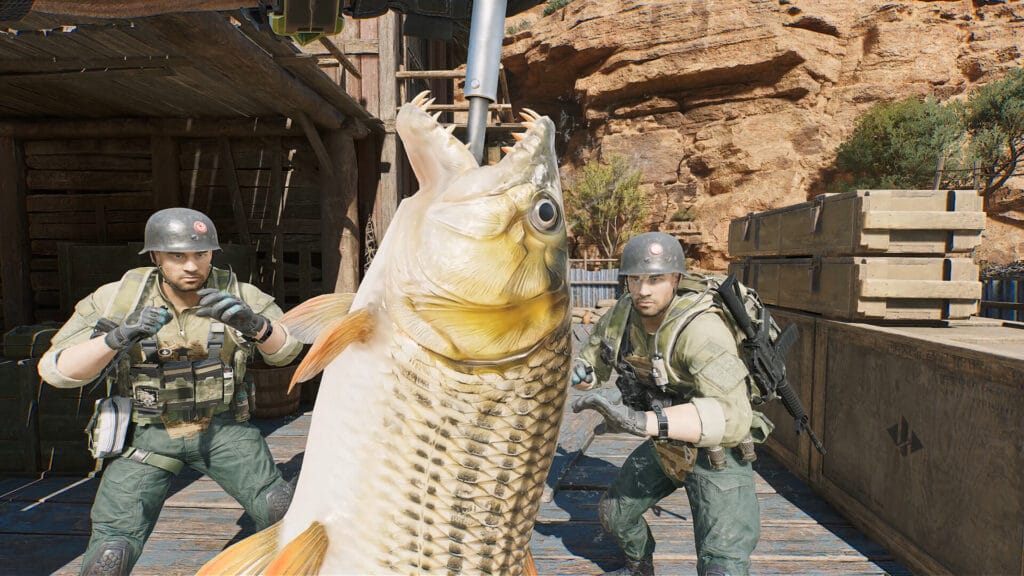
The problem with blindly dropping every single setting to Low is that you end up with a degraded presentation where distant targets blend into blurry foliage, smoke screens lose tactical clarity, and weapon reticles soften. The real objective is surgical tuning: pinpoint the specific visual parameters that trigger heavy frame drops, reduce those systematically, and preserve crisp target silhouettes across every sector.
What are the best Delta Force PC settings for high FPS?
The four most impactful tweaks are: enable DLSS Quality (NVIDIA) or FSR Quality (AMD), lower Volumetric Fog to Low, set Shadows to Medium, and drop Particles to Low. Disable Ambient Occlusion completely and turn off DLSS Frame Generation in competitive multiplayer. These changes alone can elevate a mid-range system from an inconsistent 70 FPS to a rock-solid 110+ FPS without sacrificing your ability to spot distant enemies.
Table of Contents
Why Delta Force needs specific PC tuning
Delta Force renders massive combined-arms battles across expansive terrain featuring destructible fortifications, complex particle networks, and dynamic illumination from explosions, air strikes, and vehicle lights. That represents a substantial graphics workload. The default High and Ultra presets are designed for single-player cinematic screenshots rather than low-latency multiplayer firefights.
Fortunately, the built-in benchmark utility inside the graphics options menu provides repeatable testing. Run this benchmark once at your baseline preset, record your average and 1 percent low frame rates, and then apply the targeted adjustments below. The benchmark stresses dense urban zones with heavy artillery effects, matching real Warfare conditions on demanding maps like Aftershock.
Setting-by-setting performance impact
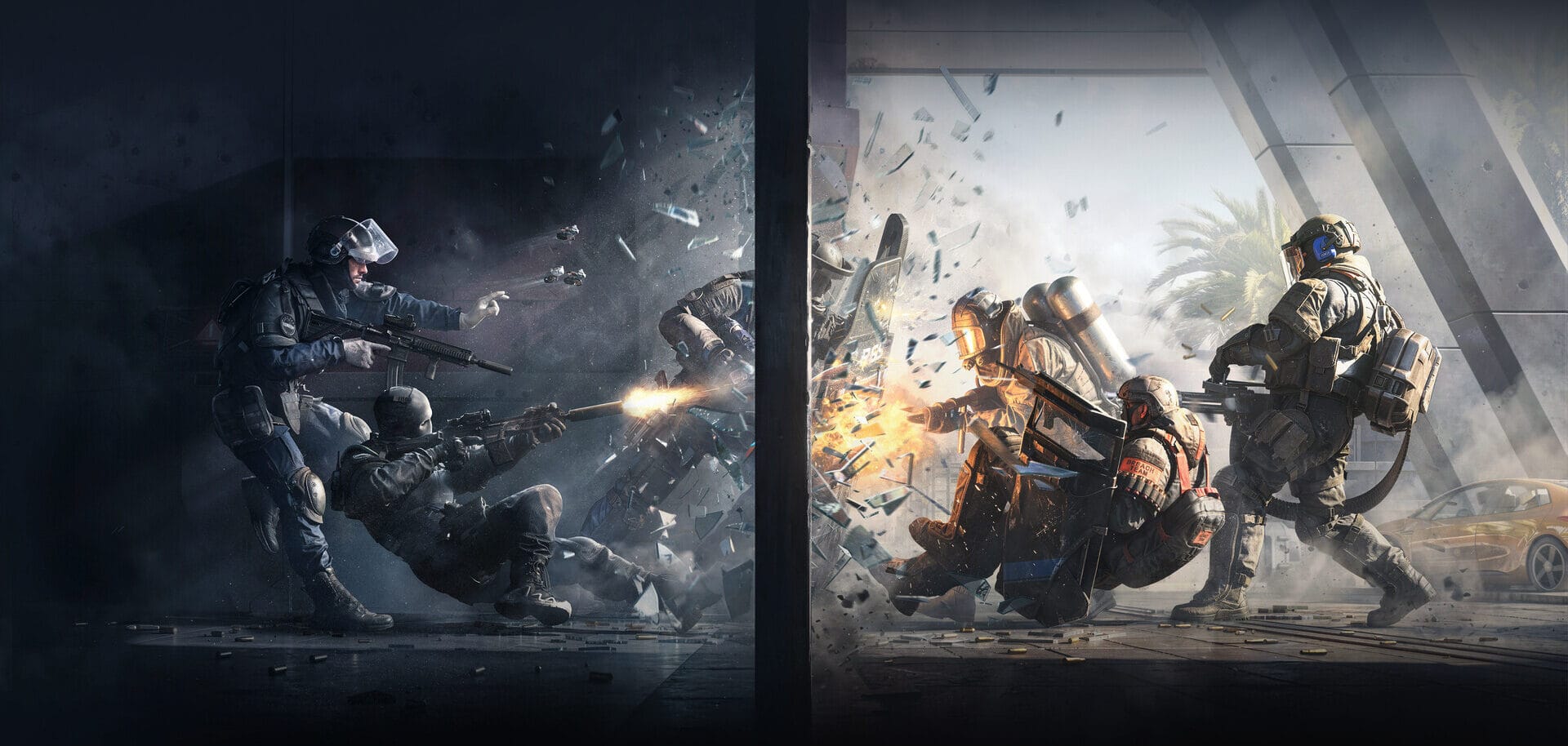
Here is every major visual setting ordered from highest to lowest measurable impact on your GPU frame time, tested across GTX 1660, RTX 3060, and RTX 4070 configurations:
Volumetric Fog (Very High Impact)
Volumetric Fog calculates per-voxel light scattering in 3D screen space. In jungle insertion zones and urban smoke-filled Aftershock sectors, this setting heavily strains GPU shader pipelines. Lowering Volumetric Fog from High to Low recovers between 15 and 25 percent of your total frame budget. More importantly for competitive play, setting fog to Low makes smoke grenades easier to navigate rather than blinding your own weapon sights.
Recommended Action: Set to Low across all competitive systems.
Shadow Quality (High Impact)
Shadow quality determines shadow map resolution for buildings, vehicles, and player models. While High produces ultra-sharp shadow edges, Medium looks virtually identical in fast-paced infantry combat while reclaiming 10 to 18 FPS at 1080p. Additionally, overly sharp foliage shadows can mask enemy silhouettes in woodland areas. Medium creates cleaner visual contrast.
Recommended Action: Set to Medium on mid-range cards, Low on budget systems.
Particles (High Impact)
Particle simulations control explosion debris, vehicle smoke, artillery dust clouds, and bullet tracer vapor. Setting Particles to Low does not remove combat feedback; it simply reduces secondary debris counts and shortens cloud lifespans. This prevents sudden frame rate drops during chaotic 64-player point captures.
Recommended Action: Set to Low for consistent frametime pacing.
Ambient Occlusion (Medium-High Impact)
Ambient Occlusion adds contact shading in corners and under cover. In a competitive shooter where your camera is in constant motion, the static depth enhancement is rarely noticeable, but turning it off recovers 8 to 12 FPS instantly.
Recommended Action: Set to Off for competitive advantage.
Scene View Distance (Low Impact, Tactically Critical)
View Distance controls the level of detail threshold for distant geometry. Unlike other titles, Delta Force uses efficient object streaming, meaning High View Distance costs very little performance. Dropping it too low introduces object pop-in that can disrupt long-range sniper spotting in Warfare mode.
Recommended Action: Keep at High or Ultra for maximum spotting range.
Textures and Texture Filtering (Very Low Impact)
Texture resolution is constrained by video memory rather than GPU compute power. On graphics cards with 6 GB of VRAM or higher, keeping Textures on High carries negligible frame rate penalties while ensuring enemy uniforms remain distinct against terrain backgrounds.
Recommended Action: Keep on High or Ultra.
DLSS vs FSR vs XeSS: which upscaler to pick
Upscaling provides the highest performance return with minimal visual degradation. Here is how to configure temporal upscaling:
- NVIDIA DLSS: Select DLSS Quality mode on all RTX series GPUs. It yields a 25 to 35 percent frame rate gain while maintaining pristine crosshair clarity and long-range edge sharpness.
- DLSS Frame Generation: Keep this option turned OFF for competitive multiplayer matches. Frame Generation adds synthesized frames that increase the displayed frame rate counter but introduce noticeable input latency during flick-shots and tracking.
- AMD FSR: Use FSR Quality on AMD Radeon and older NVIDIA GTX cards. It delivers substantial FPS gains without excessive edge shimmering.
- Intel XeSS: An excellent alternative fallback on Intel Arc GPUs and older hardware when FSR or DLSS are unavailable.
GPU tier presets: complete recommended settings
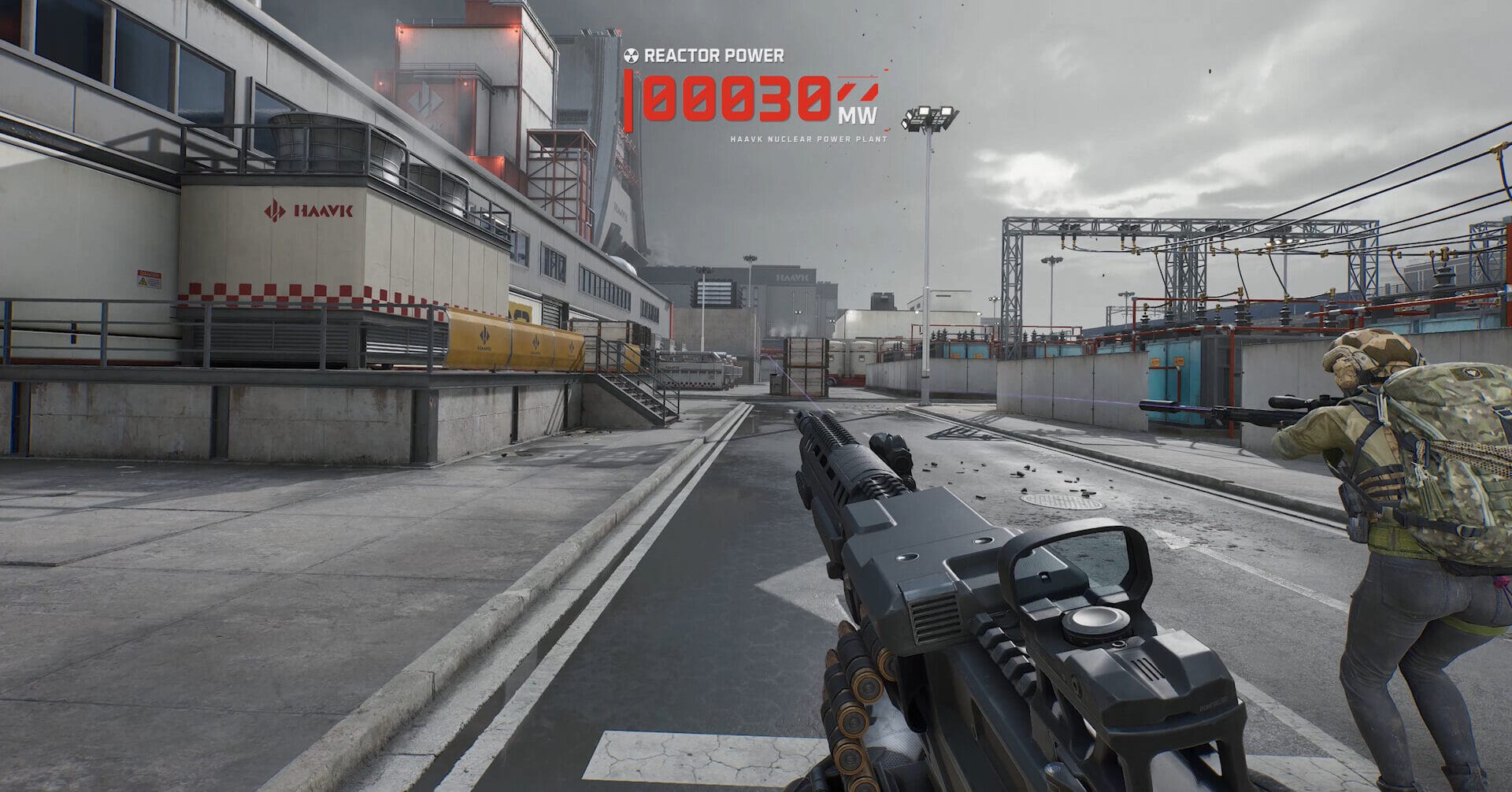
Apply these complete graphics presets tailored directly to your system’s hardware capability:
Budget Tier: GTX 1660 Super / RX 5500 XT
| Setting Name | Recommended Value | Performance Objective |
|---|---|---|
| Display Mode | Fullscreen | Minimal input lag |
| Upscaling | FSR Quality | Substantial FPS uplift |
| Textures | High (if 6GB VRAM) | Clean player silhouettes |
| Shadows | Low | Recover GPU headroom |
| Volumetric Fog | Low | Clear vision in smoke |
| Particles | Low | Prevent explosion dips |
| Ambient Occlusion | Off | Eliminate rendering cost |
| Reflections | Low | Reduce shader compute |
| Scene View Distance | Medium | Balance range & memory |
| Motion Blur | Off | Zero camera blur |
Expected Performance: 65 to 80 FPS at 1080p in Warfare mode with reliable stability.
Mid-Range Tier: RTX 3060 / RX 6700 XT
| Setting Name | Recommended Value | Performance Objective |
|---|---|---|
| Display Mode | Fullscreen | Exclusive desktop focus |
| Upscaling | DLSS Quality / FSR Quality | 100+ FPS baseline |
| Textures | High | Sharp weapon details |
| Shadows | Medium | Balanced contrast |
| Volumetric Fog | Low | Optimal smoke readability |
| Particles | Low | Smooth 64-player brawls |
| Ambient Occlusion | Off | Boosted frametime pacing |
| Reflections | Low | Fast rasterized pass |
| Scene View Distance | High | Full tactical spotting |
| Motion Blur | Off | High-speed aim clarity |
Expected Performance: 105 to 130 FPS at 1080p, 85 to 110 FPS at 1440p with DLSS Quality enabled.
High-Performance Tier: RTX 4070 / RX 7800 XT
| Setting Name | Recommended Value | Performance Objective |
|---|---|---|
| Display Mode | Fullscreen | Lowest hardware latency |
| Upscaling | Native 1080p / DLSS Quality 1440p | Flawless fidelity |
| Textures | Ultra | Maximum texture detail |
| Shadows | Medium or High | Crisp environment depth |
| Volumetric Fog | Medium | Atmospheric realism |
| Particles | Medium | Rich explosion effects |
| Ambient Occlusion | Low | Subtle structure shading |
| Reflections | Medium | Polished reflections |
| Scene View Distance | Ultra | Unrestricted spotting |
| Motion Blur | Off | Crisp competitive tracking |
Expected Performance: 140 to 180+ FPS at 1440p, ideal for high-refresh 165Hz and 240Hz monitors.
Windows 11 system-level tweaks that actually matter
Optimizing in-game options is only half the equation. Apply these native Windows tweaks to maximize system-wide responsiveness:
- Enable Hardware-Accelerated GPU Scheduling (HAGS): Search for Graphics Settings in Windows and toggle HAGS On. This reduces CPU driver overhead during intense 64-player Warfare exchanges.
- Windows Power Plan: Switch from Balanced to High Performance in the Power Options panel to prevent CPU clock down-throttling during combat bursts.
- Enable NVIDIA Reflex: Inside Delta Force graphics settings, set NVIDIA Reflex to On or On+Boost. This reduces mouse click-to-display response times by up to 25 milliseconds.
- Disable Background Captures: Turn off Xbox Game Bar background recording to prevent intermittent micro-stutters during heavy combat sequences.
- Enable XMP or EXPO RAM Profiles: Delta Force relies heavily on memory bandwidth. Ensure your RAM is running at its advertised speed in your motherboard BIOS.
For an exhaustive walkthrough on stripping operating system latency, read our dedicated guide on reducing input lag in Windows 11.
Delta Force PC settings: frequently asked questions
Does lowering settings provide a competitive advantage in Delta Force?
Yes. Disabling Motion Blur and Depth of Field removes unwanted blur during quick turns. Setting Shadows to Medium and Volumetric Fog to Low ensures enemy silhouettes remain clearly defined across complex terrain and smoke screens.
Should I enable DLSS Frame Generation in Delta Force?
Turn it off for competitive multiplayer. While Frame Generation inflates your FPS counter, the interpolated frames add slight input delay to mouse tracking. Save Frame Generation for co-op or campaign experiences.
Is 60 FPS sufficient for competitive Warfare mode?
60 FPS is fully playable, but reaching 100+ FPS dramatically enhances target acquisition and recoil control on high-refresh displays. Using our optimized presets will help most mid-range PCs hit this target.
What resolution scale should I use without upscalers?
Keep Resolution Scale at 100 percent. If your GPU struggles to maintain 60 FPS, enable FSR Quality rather than manually lowering render resolution below 100 percent.
To learn more about client downloads, installation, and overall gameplay features, visit our foundational Delta Force PC Windows review and installation guide.
Sources: Hardware benchmarking and settings verification conducted on Windows 10 and 11, September 2026. Official documentation via Delta Force Steam page and playdeltaforce.com.

Allen Wade is a Senior PC Hardware & Performance Analyst at PerfCore with over 8 years of experience benchmarking CPUs, GPUs, gaming laptops, and system architectures. He specializes in 1080p and 1440p frametime analysis, thermal dynamics, and budget component optimization. Allen’s hardware testing methodology relies on standardized test benches, repeatable CapFrameX frametime captures, and clean OS environments.